
| This post originally appeared on the Decodable blog. |
In the previous blog post I looked at the role of catalogs in Flink SQL, the different types, and some of the quirks around their configuration and use. If you are new to Flink SQL and catalogs, I would recommend reading that post just to make sure you’re not making some of the same assumptions that I mistakenly did when looking at this for the first time.
In this article I am going to walk through the use of several different catalogs and go into a bit of depth with each to help you understand exactly what they’re doing—partly out of general curiosity, but also as an important basis for troubleshooting. I’ll let you know now: some of this goes off on tangents somewhat, but I learnt lots during it and I want to share that with you!
Why three different metastores with the Iceberg catalog? Because I found the documentation across the different projects difficult to reconcile into a consistent overall picture, so by examining multiple backends I got a proper grasp of what was going on.
Let’s get started with one of the most widely-supported and open-standard catalogs: Apache Hive, and specifically, its Metastore.
Using the Hive Catalog with Flink SQL 🔗
The Hive catalog is one of the three catalogs that are part of the Flink project._ _It uses the Hive Metastore to persist object definitions, so is one of the primary choices you’ve got for a catalog to use with Flink.
Installation and Configuration 🔗
It’s important to note that whilst the Hive catalog is part of the Flink project, it’s not shipped with the binaries. The docs describe the process of installing the dependencies and necessary configuration, but to someone not super-familiar with Java and Hadoop I found myself stuck quite often. In case you’re in the same boat, I’m going to detail here the steps I took to get it working.
This is all on my local machine; doing the same for a production-grade deployment of Flink would probably be different. And if you’re using a managed Flink service , irrelevant 😄.
The first thing to do is to make sure you’ve got a Hive Metastore. Fortunately Chris Riccomini has built and shared a Docker image that provides just this . It uses an embedded DerbyDB to store the metadata. As mentioned; this is just for a local setup—if you decide to take this on to real use then you’ll want to make sure you’re persisting the data in a proper RDBMS.
Run this to start the container which listens on port 9083:
docker run --rm --detach --name hms-standalone \
		--publish 9083:9083 \
		ghcr.io/recap-build/hive-metastore-standalone:latest
Now we need to create a file that Flink is going to look for to tell it where to find the Hive Metastore.
This is hive-site.xml and needs to go in Flink’s ./conf folder (by default):
cat > ./conf/hive-site.xml <<EOF
<?xml version="1.0" encoding="UTF-8" standalone="no"?>
<?xml-stylesheet type="text/xsl" href="configuration.xsl"?>
<configuration>
  <property>
    <name>hive.metastore.local</name>
    <value>false</value>
  </property>

  <property>
    <name>hive.metastore.uris</name>
    <value>thrift://localhost:9083</value>
  </property>

</configuration>
EOF
Note that localhost:9083 points to the Docker container we just started.
If you’re using a Hive Metastore on a different host/port then amend this as needed.
Now we get to the fun bit— dependencies !
The Hive dependency is actually straightforward: download flink-sql-connector-hive-3.1.3 from Maven Central into a new subfolder under your ./lib folder:
mkdir -p ./lib/hive
curl https://repo1.maven.org/maven2/org/apache/flink/flink-sql-connector-hive-3.1.3_2.12/1.18.1/flink-sql-connector-hive-3.1.3_2.12-1.18.1.jar \
	-o ./lib/hive/flink-sql-connector-hive-3.1.3_2.12-1.18.1.jar
This is where it gets "fun": Hadoop Dependency 🔗
Unless you have a Hadoop distribution lying around on your hard drive you’re going to need to avail yourself of some JARs. There’s the simple way, and the hacky way. Let’s start with the hacky one.
Option 1: Slightly Hacky but light-weight 🔗
The alternative to a full Hadoop download which we’ll see below (and resulting JAR clashes as seen with FLINK-33358 ) is to just download the JARs that Hive seems to want and make those available.
I’ve identified these by trial-and-error because I was offended by needing such a heavy-weight download ¯_(ツ)_/¯.
Download them directly into the ./lib/hive folder that we created above:
mkdir -p ./lib/hive
curl https://repo1.maven.org/maven2/com/fasterxml/woodstox/woodstox-core/5.3.0/woodstox-core-5.3.0.jar -o ./lib/hive/woodstox-core-5.3.0.jar
curl https://repo1.maven.org/maven2/commons-logging/commons-logging/1.1.3/commons-logging-1.1.3.jar -o ./lib/hive/commons-logging-1.1.3.jar
curl https://repo1.maven.org/maven2/org/apache/commons/commons-configuration2/2.1.1/commons-configuration2-2.1.1.jar -o ./lib/hive/commons-configuration2-2.1.1.jar
curl https://repo1.maven.org/maven2/org/apache/hadoop/hadoop-auth/3.3.2/hadoop-auth-3.3.2.jar -o ./lib/hive/hadoop-auth-3.3.2.jar
curl https://repo1.maven.org/maven2/org/apache/hadoop/hadoop-common/3.3.2/hadoop-common-3.3.2.jar -o ./lib/hive/hadoop-common-3.3.2.jar
curl https://repo1.maven.org/maven2/org/apache/hadoop/hadoop-hdfs-client/3.3.2/hadoop-hdfs-client-3.3.2.jar -o ./lib/hive/hadoop-hdfs-client-3.3.2.jar
curl https://repo1.maven.org/maven2/org/apache/hadoop/hadoop-mapreduce-client-core/3.3.2/hadoop-mapreduce-client-core-3.3.2.jar -o ./lib/hive/hadoop-mapreduce-client-core-3.3.2.jar
curl https://repo1.maven.org/maven2/org/apache/hadoop/thirdparty/hadoop-shaded-guava/1.1.1/hadoop-shaded-guava-1.1.1.jar -o ./lib/hive/hadoop-shaded-guava-1.1.1.jar
curl https://repo1.maven.org/maven2/org/codehaus/woodstox/stax2-api/4.2.1/stax2-api-4.2.1.jar -o ./lib/hive/stax2-api-4.2.1.jar
Option 2: The Proper (but bloated) Option 🔗
Download and extract 600MB Hadoop tar file:
mkdir ~/hadoop
cd ~/hadoop
wget https://archive.apache.org/dist/hadoop/common/hadoop-3.3.2/hadoop-3.3.2.tar.gz
tar xvf hadoop-3.3.2.tar.gz
Set the HADOOP_CLASSPATH.
Something you might miss from the docs (I did) is that what’s quoted:
export HADOOP_CLASSPATH=`hadoop classpath`This actually executes the hadoop binary with the classpath command, and sets the output as the environment variable HADOOP_CLASSPATH.
In effect it’s doing this:
$ cd hadoop/hadoop-3.3.2
$ ./bin/hadoop classpath
/Users/rmoff/hadoop/hadoop-3.3.2/etc/hadoop:/Users/rmoff/hadoop/hadoop-3.3.2/share/hadoop/common/lib/*:/Users/rmoff/hadoop/hadoop-3.3.2/share/hadoop/common/*:/Users/rmoff/hadoop/hadoop-3.3.2/share/hadoop/hdfs:/Users/rmoff/hadoop/hadoop-3.3.2/share/hadoop/hdfs/lib/*:/Users/rmoff/hadoop/hadoop-3.3.2/share/hadoop/hdfs/*:/Users/rmoff/hadoop/hadoop-3.3.2/share/hadoop/mapreduce/*:/Users/rmoff/hadoop/hadoop-3.3.2/share/hadoop/yarn:/Users/rmoff/hadoop/hadoop-3.3.2/share/hadoop/yarn/lib/*:/Users/rmoff/hadoop/hadoop-3.3.2/share/hadoop/yarn/*
and taking that output to set as the environment variable that the Hive code in Flink will use. Unless you’ve gone ahead and actually installed Hadoop, you’ll need to specify the binary’s absolute path to use it:
$ export HADOOP_CLASSPATH=$(~/hadoop/hadoop-3.3.2/bin/hadoop classpath)
$ echo $HADOOP_CLASSPATH
/Users/rmoff/hadoop/hadoop-3.3.2/etc/hadoop:/Users/rmoff/hadoop/hadoop-3.3.2/share/hadoop/common/lib/*:/Users/rmoff/hadoop/hadoop-3.3.2/share/hadoop/common/*:/Users/rmoff/hadoop/hadoop-3.3.2/share/hadoop/hdfs:/Users/rmoff/hadoop/hadoop-3.3.2/share/hadoop/hdfs/lib/*:/Users/rmoff/hadoop/hadoop-3.3.2/share/hadoop/hdfs/*:/Users/rmoff/hadoop/hadoop-3.3.2/share/hadoop/mapreduce/*:/Users/rmoff/hadoop/hadoop-3.3.2/share/hadoop/yarn:/Users/rmoff/hadoop/hadoop-3.3.2/share/hadoop/yarn/lib/*:/Users/rmoff/hadoop/hadoop-3.3.2/share/hadoop/yarn/*
You’ll notice I’m using $( ) instead of ` ` to enclose the hadoop call because to me it’s more readable and less ambiguous—I read the docs as meaning you just had to put the Hadoop classpath in the place of hadoop classpath, not that it was an actual command to run.
If you’re using 1.18 then because of [FLINK-33358 Flink SQL Client fails to start in Flink on YARN - ASF JIRA] you’ll need to apply this small PR to your sql-client.sh before running the SQL Client.
SQL Client with the Hive Catalog 🔗
With our dependencies installed and configured, and a Hive Metastore instance running, we’re ready to go and use our Hive catalog. Launch the SQL Client:
./bin/sql-client.shIf you’re using HADOOP_CLASSPATH make sure you set it in the context of the shell session that you launch the SQL Client in.
From the Flink SQL prompt you can create the catalog:
CREATE CATALOG c_hive WITH (
      'type' = 'hive',
      'hive-conf-dir' = './conf/');
Set the catalog to the active one:
USE CATALOG c_hive;List databases:
Flink SQL> SHOW DATABASES;
+---------------+
| database name |
+---------------+
|       default |
+---------------+
1 row in set
Create a new database & use it:
Flink SQL> CREATE DATABASE new_db;
[INFO] Execute statement succeed.

Flink SQL> USE new_db;
[INFO] Execute statement succeed.
The SHOW CURRENT command is useful to orientate yourself in the session:
Flink SQL> SHOW CURRENT CATALOG;
+----------------------+
| current catalog name |
+----------------------+
|               c_hive |
+----------------------+
1 row in set

Flink SQL> SHOW CURRENT DATABASE;
+-----------------------+
| current database name |
+-----------------------+
|                new_db |
+-----------------------+
1 row in set
To show that the persistence of the catalog metadata in Hive Metastore is working let’s go and create a table:
Flink SQL> CREATE TABLE foo (
			     c1 INT,
			     c2 STRING
			 ) WITH (
			   'connector' = 'datagen',
			   'number-of-rows' = '8'
			 );
[INFO] Execute statement succeed.

Flink SQL> SHOW TABLES;
+------------+
| table name |
+------------+
|        foo |
+------------+
1 row in set
We’ll query it, just to make sure things are working:
Flink SQL> SET 'sql-client.execution.result-mode' = 'tableau';
[INFO] Execute statement succeed.

Flink SQL> SET 'execution.runtime-mode' = 'batch';
[INFO] Execute statement succeed.

Flink SQL> SELECT * FROM foo;
+-------------+--------------------------------+
|          c1 |                             c2 |
+-------------+--------------------------------+
| -1661109571 | 5c6a9dc95b902e6f7fabb23d53e... |
|  1158331176 | 4256c5643eca73aaaa28a3609e0... |
| -2071639638 | 4b7b20b58a4ce9d4aa81d13a566... |
| -1586162357 | 9add50adef170e51cf22c99a150... |
|   358671098 | 4c938c5985783b36c8b1a90d819... |
| -2052452860 | 8a2a6328eba62aa160fa4dbc12c... |
| -1755663778 | 4395b96ceffcd46b5f9354d97ce... |
| -1454974054 | 38a87a1525daf1626b7c3c578e4... |
+-------------+--------------------------------+
8 rows in set
Now restart the session:
Flink SQL> EXIT;
[INFO] Exiting Flink SQL CLI Client...

Shutting down the session...
done.

❯ ./bin/sql-client.sh
Because we’re using the Hive catalog and not the in-memory one, we should see the database (new_db) and table (foo) still present:
Flink SQL> SHOW TABLES IN `c_hive`.`new_db`;
[ERROR] Could not execute SQL statement. Reason:
org.apache.flink.table.api.ValidationException: Catalog c_hive does not exist
Oh noes! It didn’t work! 🙀 Or did it? 😼
I mentioned Catalog Stores in my first blog post , and I’ve not defined one—meaning that the catalog definition is not persisted between sessions. If I define the catalog again:
Flink SQL> CREATE CATALOG c_hive WITH (
>        'type' = 'hive',
>        'hive-conf-dir' = './conf/');
[INFO] Execute statement succeed.
Then I find that the catalog’s metadata is still present, as it should be!
Flink SQL> SHOW TABLES IN `c_hive`.`new_db`;
+------------+
| table name |
+------------+
|        foo |
+------------+
1 row in set
In this sense, when we create a catalog in Flink it’s more like creating a connection. Once that connection is created, whatever metadata is stored the other side of it becomes available to Flink.
So that’s using the Hive catalog with Flink. You can skip over the next section if you want, but if you’re like me and curious as to what’s happening behind the scenes then keep reading.
Sidenote: Digging a bit Deeper into the Hive Metastore 🔗
Here’s what we’ll see on successful connection from the SQL Client to the Hive Metastore in the logs (flink-rmoff-sql-client-asgard08.log):
org.apache.hadoop.hive.conf.HiveConf                 [] - Found configuration file file:/Users/rmoff/flink/flink-1.18.1/conf/hive-site.xml
org.apache.flink.table.catalog.hive.HiveCatalog      [] - Setting hive conf dir as ./conf/
org.apache.flink.table.catalog.hive.HiveCatalog      [] - Created HiveCatalog 'c_hive'
org.apache.hadoop.hive.metastore.HiveMetaStoreClient [] - Trying to connect to metastore with URI thrift://localhost:9083
org.apache.hadoop.hive.metastore.HiveMetaStoreClient [] - Opened a connection to metastore, current connections: 1
org.apache.hadoop.hive.metastore.HiveMetaStoreClient [] - Connected to metastore.
We can inspect the network traffic between Flink and Hive using tcpdump.
Since the Hive Metastore is on Docker, we’ll use another container to help here.
Create a tcpdump docker image:
docker build -t tcpdump - <With this we can capture details of the communication between Flink and the Hive Metastore:
docker run -v /tmp:/tmp/ \
           --rm \
           --tty \
           --net=container:hms-standalone tcpdump \
           tcpdump -w /tmp/flink-hms.pcap
Hive metastore uses the Thrift protocol to communicate with clients, and by loading the resulting pcap file into Wireshark we can inspect this traffic in more detail.
Here we see the creation of a table called foo_new2 in the new_db database:
+ Of course, none of this is actually necessary for simply using a catalog with Flink—but I found it useful for mapping out in my mind what’s actually happening.
What does the Hive catalog look like when storing Parquet data in S3 (MinIO) from Flink? 🔗
OK, back to the main storyline.
We’ve now got a Hive catalog working, persisting the metadata about a definition-only table.
What do I mean by a definition-only table?
Well it’s completely self-contained; there is no real data, just datagen:
CREATE TABLE foo (
     c1 INT,
     c2 STRING
 ) WITH (
   'connector' = 'datagen',
   'number-of-rows' = '8'
 );
Let’s now add in something more realistic, and understand how we can write data from Flink to a table whose data actually exists somewhere. We’ll store the data on MinIO , which is an S3-compatible object store that you can run locally, and write it in the widely-adopted Apache Parquet column-oriented file format.
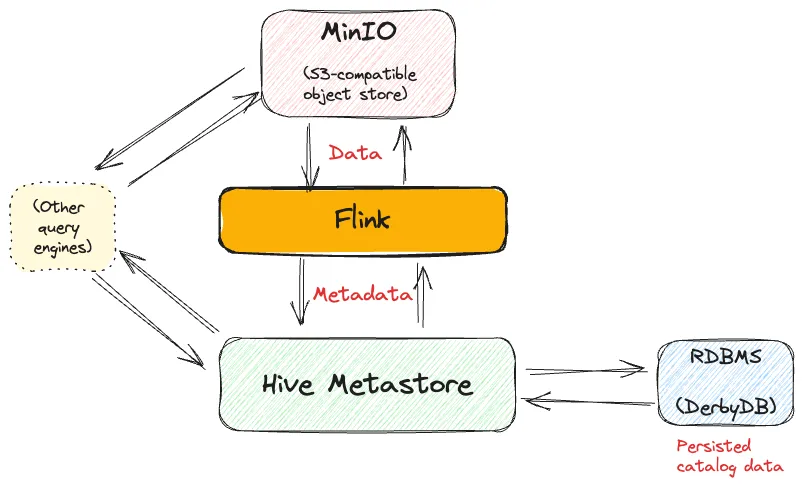
Setup 🔗
First we need to add the Parquet format to the available JARs:
mkdir -p lib/formats
curl https://repo.maven.apache.org/maven2/org/apache/flink/flink-sql-parquet/1.18.1/flink-sql-parquet-1.18.1.jar \
	-o ./lib/formats/flink-sql-parquet-1.18.1.jar
Now we’ll set up the S3 bit, for which we’re using MinIO and will need Flink’s S3 support . Run MinIO using Docker:
docker run --rm --detach \
           --name minio \
           -p 9001:9001 -p 9000:9000 \
           -e "MINIO_ROOT_USER=admin" \
           -e "MINIO_ROOT_PASSWORD=password" \
           minio/minio \
           server /data --console-address ":9001"
Then provision a bucket:
docker exec minio \
	mc config host add minio http://localhost:9000 admin password
docker exec minio \
	mc mb minio/warehouse
Flink’s S3 plugin is included in the Flink distribution but needs to be added to the ./plugins folder to be available for us:
mkdir ./plugins/s3-fs-hadoop
cp ./opt/flink-s3-fs-hadoop-1.18.1.jar ./plugins/s3-fs-hadoop/
Finally, add the required configuration to ./conf/flink-conf.yaml:
cat >> ./conf/flink-conf.yaml <[Re]start your Flink cluster, and launch the SQL Client.
Using Parquet and S3 from Flink 🔗
Declare the Hive catalog connection again, and create a new database within it:
CREATE CATALOG c_hive WITH (
      'type' = 'hive',
      'hive-conf-dir' = './conf/');
USE CATALOG c_hive;

CREATE DATABASE db_rmoff;
USE db_rmoff;
Now we’ll create a table that’s going to use filesystem persistence for its data, which will be written in Parquet format:
CREATE TABLE t_foo_fs (c1 varchar, c2 int)
WITH (
  'connector' = 'filesystem',
  'path' = 's3://warehouse/t_foo_fs/',
  'format' = 'parquet'
);
Add some data to the table:
Flink SQL> INSERT INTO t_foo_fs VALUES ('a',42);
[INFO] Submitting SQL update statement to the cluster...
[INFO] SQL update statement has been successfully submitted to the cluster:
Job ID: 218ed3a025e219df7356bbb609cad5da
Using MinIO’s mc CLI tool we can see the table data written:
❯ docker exec minio mc ls -r minio/warehouse/

[2024-01-25 14:02:35 UTC]   428B STANDARD t_foo_fs/part-d79f78ef-510e-4fdc-b055-ee121f2be352-0-0
Now let’s look at the catalog.
I’m using the same Hive Metastore container as we launched above, which stores the data in an DerbyDB.
We can copy this out of the container and onto our local machine for inspection using the ij tool:
❯ docker cp hms-standalone:/tmp/metastore_db /tmp/hms_db
Successfully copied 7.11MB to /tmp/hms_db

❯ rlwrap ij
ij version 10.17
ij> connect 'jdbc:derby:/tmp/hms_db';

ij> SHOW TABLE IN app;
TABLE_SCHEM         |TABLE_NAME                    |REMARKS
------------------------------------------------------------------------
APP                 |AUX_TABLE                     |
APP                 |BUCKETING_COLS                |
APP                 |CDS                           |
APP                 |COLUMNS                       |
APP                 |DBS.                          |
[…]

ij> SELECT db_id, name FROM dbs;
DB_ID               |NAME
-----------------------------------------------------------------------------------------------------------------------------------------------------
1                   |default
2                   |db_rmoff
ij>
ij is a bit clunky when it comes to pretty output (e.g.
rows are very wide and not helpfully formatted based on the width of the data) so let’s use DBeaver to speed things up and look at the table we created.
Helpfully it can also infer the Entity-Relationship diagram automagically to aid our comprehension of the data that the metastore holds:
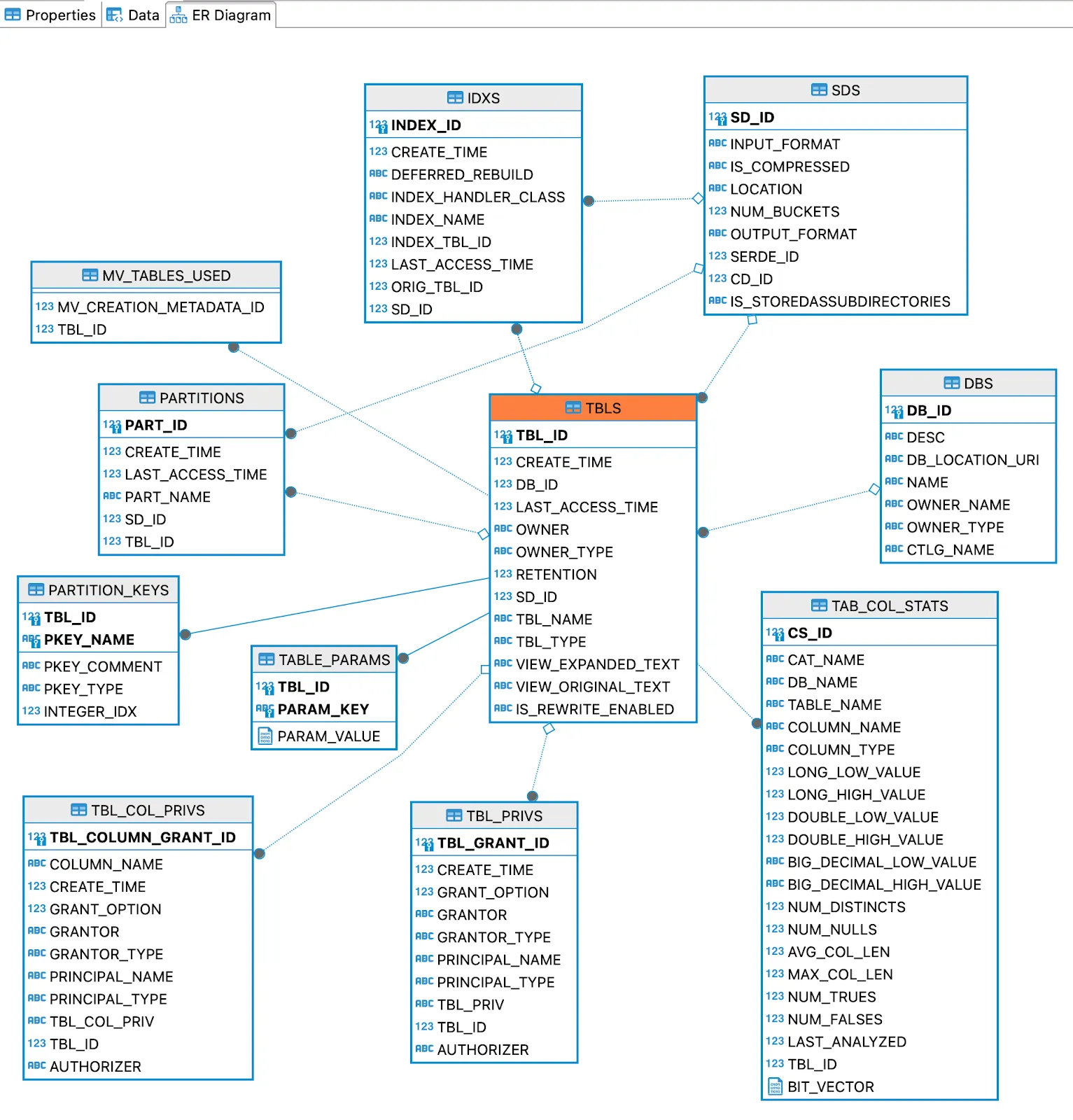
Here’s the table that we created:
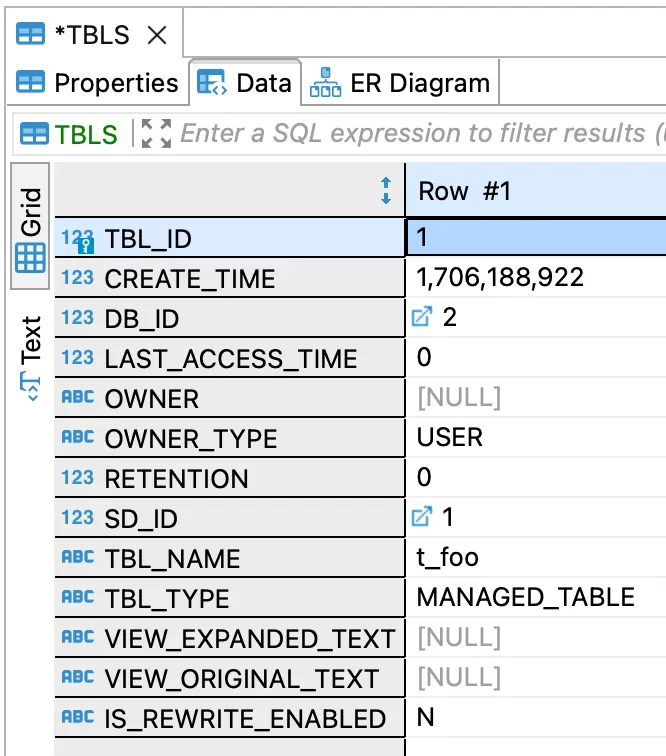
+
I wonder where things like the warehouse path are stored?
Based on the above diagram we can see TABLE_PARAMS so let’s check that out:
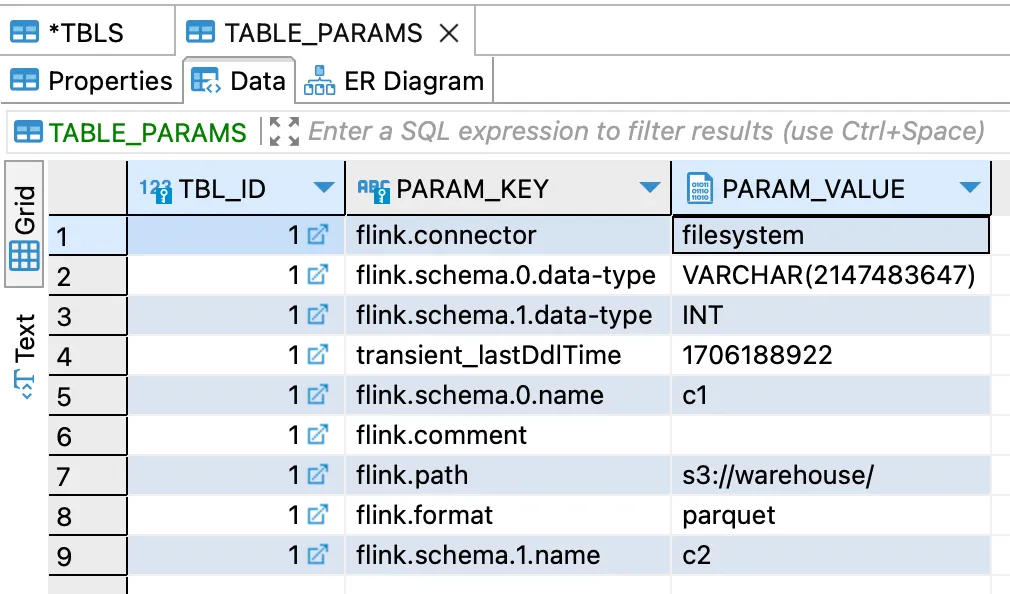
Here’s all our metadata for the table, including the location of data on disk, its format, and so on.
Phew! 😅 That was the Hive Catalog. There’s just one more catalog that’s provided with Flink before we get onto some of the other ones. Without further ado, let’s look at the JDBC Catalog.
The Flink JDBC Catalog 🔗
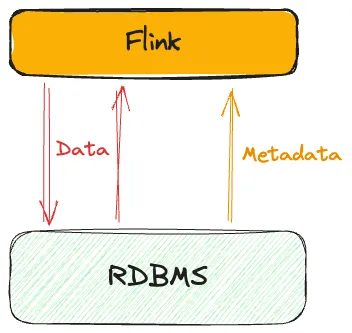
The JDBC Catalog in Flink is a bit of an odd one if you’re coming to it expecting a catalog that holds object definitions in Flink of your creation. What the JDBC catalog does is expose the existing objects and their data of a target database to Flink. Which is pretty neat—it’s just not what you might assume it does. With that in mind, let’s see how it works.
Installation and Configuration 🔗
Fortunately, the dependencies for the JDBC catalog are a lot simpler than Hive’s. As with the Hive connector you need to download the JDBC connector separately since it’s not bundled with the Flink distribution. You also need the JDBC driver of the database to which you want to connect—the docs have a useful reference to the download links for these.
As of the end of January 2024, Flink 1.18.1 has no released version of the JDBC connector, but with a [email protected]">release vote underway I’d expect that to change soon. The example I’ve done here is using [email protected]:lte=1M:jdbc">the third release candidate (RC3) of the JDBC connector.
So, let’s download both the required JARs into a new folder under ./lib:
mkdir -p ./lib/jdbc
curl https://repository.apache.org/content/repositories/orgapacheflink-1706/org/apache/flink/flink-connector-jdbc/3.1.2-1.18/flink-connector-jdbc-3.1.2-1.18.jar \
	-o ./lib/jdbc/flink-connector-jdbc-3.1.2-1.18.jar
curl https://repo1.maven.org/maven2/org/postgresql/postgresql/42.7.1/postgresql-42.7.1.jar \
	-o ./lib/jdbc/postgresql-42.7.1.jar
We also need a database to use. I’m using a vanilla Postgres database in a Docker container:
docker run --rm --name postgres \
           --publish 5432:5432 \
           -e POSTGRES_PASSWORD=postgres \
           -e POSTGRES_USER=postgres postgres \
           postgres
Let’s create a table with some data in it, with the psql CLI tool:
$ docker exec -it postgres psql --username=postgres
psql (16.0 (Debian 16.0-1.pgdg120+1))
Type "help" for help.

postgres=# CREATE TABLE t_foo (c1 varchar, c2 int);
CREATE TABLE
postgres=# INSERT INTO t_foo VALUES ('a',42);
INSERT 0 1
postgres=#
Now we’ll hook this up to Flink.
Using the JDBC Catalog in Flink 🔗
With the Flink JDBC connector JAR and JDBC driver in place, we can launch the Flink cluster and SQL Client:
./bin/start-cluster.sh
./bin/sql-client.sh
From the SQL prompt let’s create the JDBC Catalog:
CREATE CATALOG c_jdbc WITH (
   'type'             = 'jdbc',
   'base-url'         = 'jdbc:postgresql://localhost:5432',
   'default-database' = 'postgres',
   'username'         = 'postgres',
   'password'         = 'postgres'
);
Now we can select the catalog as the current one and look at the tables that are defined in it.
These are the tables of the database to which we connected above.
Note that Flink doesn’t use the concept of schemas so as noted in the docs the Postgres schema (public in this example) is prepended to the table name shown in Flink.
Flink SQL> USE CATALOG c_jdbc;
[INFO] Execute statement succeed.

Flink SQL> SHOW TABLES;
+--------------+
|   table name |
+--------------+
| public.t_foo |
+--------------+
1 row in set
Querying the Postgres tables from Flink works as you’d expect.
Make sure you quote with backticks object names as needed (e.g.
the public. prefix on the Postgres table names):
Flink SQL> SELECT * FROM `public.t_foo`;
+----+----+
| c1 | c2 |
+----+----+
|  a | 42 |
+----+----+
1 row in set
If we were to change that data over in Postgres:
postgres=# UPDATE t_foo SET c1='foo' WHERE c2=42;
UPDATE 1
postgres=# SELECT * FROM t_foo ;
 c1  | c2
-----+----
 foo | 42
(1 row)
And run the same query again in Flink we can see it correctly shows the new data (as you would expect):
Flink SQL> SELECT * FROM `public.t_foo`;
+-----+----+
|  c1 | c2 |
+-----+----+
| foo | 42 |
+-----+----+
1 row in set
When it comes to writing from Flink to the JDBC catalog, we can only write data. Per the documentation , the creation of new objects (such as tables) isn’t supported:
Flink SQL> CREATE TABLE `public.t_new` (c1 varchar, c2 int);
[ERROR] Could not execute SQL statement. Reason:
java.lang.UnsupportedOperationException
But what we can do is write data (as opposed to metadata) back to the database:
Flink SQL> INSERT INTO t_foo VALUES ('Hello from Flink',42);
[INFO] Submitting SQL update statement to the cluster...
[INFO] SQL update statement has been successfully submitted to the cluster:
Job ID: 434d571da8e83976841649be7cdff69c
Which we then see in Postgres:
postgres=# SELECT * FROM t_foo ;
        c1        | c2
------------------+----
 foo              | 42
 Hello from Flink | 42
(2 rows)
So, there we have it. Reading and writing from a database with Flink via the JDBC Connector and its JDBC Catalog! This is going to be pretty handy, whether we want to analyse the data, or use it for joins with data coming from other sources, such as Apache Kafka or other streams of data.
Third-Party Flink Catalogs: Apache Iceberg 🔗
Flink can be used with many different technologies, including the open-table formats. Each of these implement a Flink catalog so that you can access and use their objects from Flink directly. Here I’ll show you Apache Iceberg’s Flink catalog, with three different metastores, (or backing catalogs, however you like to think of it). Why three? Well, to get my head around what was Iceberg, what was Flink, and what was metastore, I needed to try multiple options to understand the pattern.
In all of these I’m using MinIO for storage, which is an S3-compatible object store that can be run locally.
Flink, Iceberg, and Hive Metastore 🔗
This one was a lot of fun to figure out.
You can perhaps put a hefty number of air-quotes around that innocently-italicised fun.
😉 I’m going to dig into the deluge of dastardly debugging in a subsequent blog—for now we’ll just look at things when they go right.
Since the focus of my efforts is to understand how Flink SQL can be used by a non-Java person, I’m also making the assumption that they don’t have a Hadoop or Hive installation lying around and want to run as much of this standalone locally. So as above—where we use the Hive Metastore as a Flink catalog directly—I’m using the standalone Hive metastore Docker image . I’ve bundled this up into a GitHub repository with Flink and Iceberg if you want to try this out.
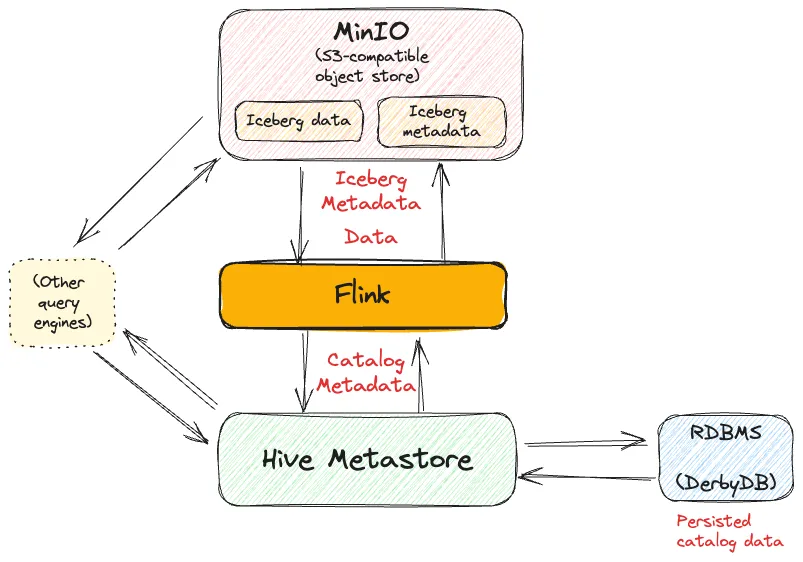
The main thing to be aware of is that it’s not just your Flink instance that will write to MinIO (S3), but the Hive Metastore too (when you create a database, for example). Therefore you need to add the S3 endpoint and authentication details to the hive-site.xml on the Hive Metastore too —not just Flink:
   fs.s3a.access.key
   admin


   fs.s3a.secret.key
   password


   fs.s3a.endpoint
   http://minio:9000


   fs.s3a.path.style.access
   true
The Flink hive-site.xml needs this too, along with the details of where the Hive Metastore can be found:
  hive.metastore.local
  false


  hive.metastore.uris
  thrift://hms:9083
With the Hive configuration done, add the necessary JAR files to your Flink ./lib folder.
You can use subfolders if you want to make it easier to track these; the classpath will recurse through them.
Once you’ve launched Flink, MinIO, and the Hive Metastore, you can go ahead and create the Iceberg catalog in Flink from the Flink SQL Client:
CREATE CATALOG c_iceberg_hive WITH (
        'type'          = 'iceberg',
        'catalog-type'  = 'hive',
        'warehouse'     = 's3a://warehouse',
        'hive-conf-dir' = './conf');
There are a couple of important points to be aware of here.
Firstly, the warehouse path defines where both the table data and metadata is held.
That’s a storage choice made by the Iceberg format , enhancing its portability and interoperability by not having its metadata tied into a particular backend.
The second thing to note in the catalog configuration is that it’s incomplete; we’re pointing to a second set of configuration held in the hive-site.xml file using the hive-conf-dir parameter.
This is where, as I mentioned above, the authentication and connection details for S3 are held.
We could even move warehouse into this and out of the CREATE CATALOG DDL, but I prefer it here for clarity.
Now we can create a database within this catalog, and tell Flink to use it for subsequent commands:
CREATE DATABASE `c_iceberg_hive`.`db_rmoff`;
USE `c_iceberg_hive`.`db_rmoff`;
Let’s go ahead and create an Iceberg table and add some data:
CREATE TABLE t_foo (c1 varchar, c2 int);
INSERT INTO t_foo VALUES ('a', 42);
To complete the end-to-end check, we can read the data back:
Flink SQL> SELECT * FROM t_foo;
+----+----+
| c1 | c2 |
+----+----+
|  a | 42 |
+----+----+
1 row in set
Let’s look at the data that’s been written to MinIO:
$ docker exec minio mc ls -r minio/warehouse/
[2024-02-02 21:30:22 UTC]   608B STANDARD db_rmoff.db/t_foo/data/00000-0-41e6f635-3859-46ef-a57e-de5f774203fa-00001.parquet
[2024-02-02 21:30:08 UTC]   957B STANDARD db_rmoff.db/t_foo/metadata/00000-109580b8-77eb-45d5-b2a7-bd63bd239c99.metadata.json
[2024-02-02 21:30:23 UTC] 2.1KiB STANDARD db_rmoff.db/t_foo/metadata/00001-e5705f33-a446-4614-ba66-80a40e176318.metadata.json
[2024-02-02 21:30:23 UTC] 6.5KiB STANDARD db_rmoff.db/t_foo/metadata/3485210c-2c99-4c72-bb36-030c8e0a4a90-m0.avro
[2024-02-02 21:30:23 UTC] 4.2KiB STANDARD db_rmoff.db/t_foo/metadata/snap-125388589100921283-1-3485210c-2c99-4c72-bb36-030c8e0a4a90.avro
You can see here in practice how we have both /data and /metadata.
The metadata files hold, unsurprisingly, metadata:
$ docker exec minio mc head minio/warehouse/db_rmoff.db/t_foo/metadata/00000-57d8f913-9e90-4446-a049-db084d17e49d.metadata.json
\\{
  "format-version" : 2,
  "table-uuid" : "5bbf14cb-fbf8-4e10-9809-08854b1048a0",
  "location" : "s3a://warehouse/db_rmoff.db/t_foo",
  "last-sequence-number" : 0,
  "last-updated-ms" : 1707132674956,
  "last-column-id" : 2,
  "current-schema-id" : 0,
  "schemas" : [ {
    "type" : "struct",
    […]
Whilst the data on disk itself is just a parquet file, which we can validate using DuckDB to read it once we’ve fetched it from MinIO:
$ docker exec minio mc \
   cat minio/warehouse/db_rmoff.db/t_foo/data/00000-0-e4327b65-69ac-40bc-8e90-aae40dc607c7-00001.parquet \
    > /tmp/data.parquet && \
    duckdb :memory: "SELECT * FROM read_parquet('/tmp/data.parquet')"
-- Loading resources from /Users/rmoff/.duckdbrc
┌─────────┬───────┐
|   c1    |  c2   |
| varchar | int32 |
├─────────┼───────┤
| a       |    42 |
└─────────┴───────┘
How does Flink know to go to the bucket called warehouse and path db_rmoff.db/t_foo/[…] to find the data and metadata for the table?
That’s where the Catalog comes in.
The Hive metastore—in this case—holds the magical metadata of this relationship, which we can see if we query the embedded DerbyDB:
ij> SELECT DB."NAME",
	       DB.DB_LOCATION_URI,
	       TB.TBL_NAME,
	       TBP.PARAM_VALUE
	FROM   APP.DBS DB
	       INNER JOIN APP.TBLS TB
	               ON DB.DB_ID = TB.DB_ID
	       INNER JOIN APP.TABLE_PARAMS TBP
	               ON TB.TBL_ID = TBP.TBL_ID
	WHERE  TBP.PARAM_KEY = 'metadata_location';

NAME    |DB_LOCATION_URI            |TBL_NAME|PARAM_VALUE                                                                                         |
--------+---------------------------+--------+----------------------------------------------------------------------------------------------------+
db_rmoff|s3a://warehouse/db_rmoff.db|t_foo   |s3a://warehouse/t_foo/metadata/00000-5946940a-04fa-4a60-9bc9-b83db818560a.metadata.json
Flink, Iceberg, and DynamoDB Metastore 🔗
This permutation is obviously—given the use of DynamoDB—designed for when you’re running Flink on AWS, perhaps with EMR. My thanks to Chunting Wu who published an article and corresponding GitHub repo that shows how to get this up and running.
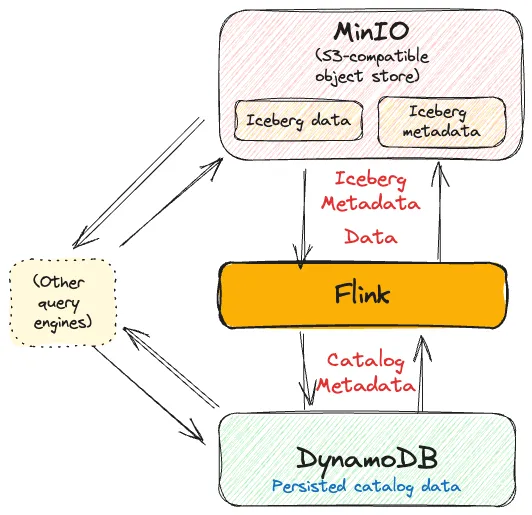
From the SQL Client, we create the Iceberg catalog with DynamoDB as the metastore.
Note the use of catalog-impl rather than catalog-type.
CREATE CATALOG c_iceberg_dynamo WITH (
'type'                 = 'iceberg',
'io-impl'              = 'org.apache.iceberg.aws.s3.S3FileIO',
'catalog-impl'         = 'org.apache.iceberg.aws.dynamodb.DynamoDbCatalog',
'dynamodb.table-name'  = 'iceberg-catalog',
'dynamodb.endpoint'    = 'http://dynamodb-local:8000',
'warehouse'            = 's3://warehouse',
's3.endpoint'          = 'http://storage:9000',
's3.path-style-access' = 'true');
Now create a database in the new catalog and set it as the current one:
CREATE DATABASE c_iceberg_dynamo.db_rmoff;
USE c_iceberg_dynamo.db_rmoff;
With that done we can create a table and some data in it:
CREATE TABLE t_foo (c1 varchar, c2 int);
INSERT INTO  t_foo VALUES ('a', 42);
Check the data has been persisted:
Flink SQL> SELECT * FROM t_foo;
+----+--------------------------------+-------------+
| op |                             c1 |          c2 |
+----+--------------------------------+-------------+
| +I |                              a |          42 |
+----+--------------------------------+-------------+
Received a total of 1 row
This all looks good! As you’d expect, the data and metadata written to disk is the same as above when we use the Hive Metastore—because all we’re changing out here is the metastore layer, everything else is the same.
$ docker exec mc bash -c "mc ls -r minio/warehouse/db_rmoff.db"
[2024-01-25 17:38:45 UTC]   626B STANDARD t_foo/data/00000-0-048a9bc4-a071-4f5e-a583-f928fce83395-00001.parquet
[2024-01-25 17:38:36 UTC] 1.2KiB STANDARD t_foo/metadata/00000-b3eb6977-2a18-446a-8280-cbccdc61d13e.metadata.json
[2024-01-25 17:38:45 UTC] 2.3KiB STANDARD t_foo/metadata/00001-fa3a16bf-a8be-4d2a-81ec-171f3f4ef8e2.metadata.json
[2024-01-25 17:38:45 UTC] 5.6KiB STANDARD t_foo/metadata/ac3ed4d0-4b94-4666-994f-71ab6e5d0ea7-m0.avro
[2024-01-25 17:38:45 UTC] 3.7KiB STANDARD t_foo/metadata/snap-7271853754385708270-1-ac3ed4d0-4b94-4666-994f-71ab6e5d0ea7.avro
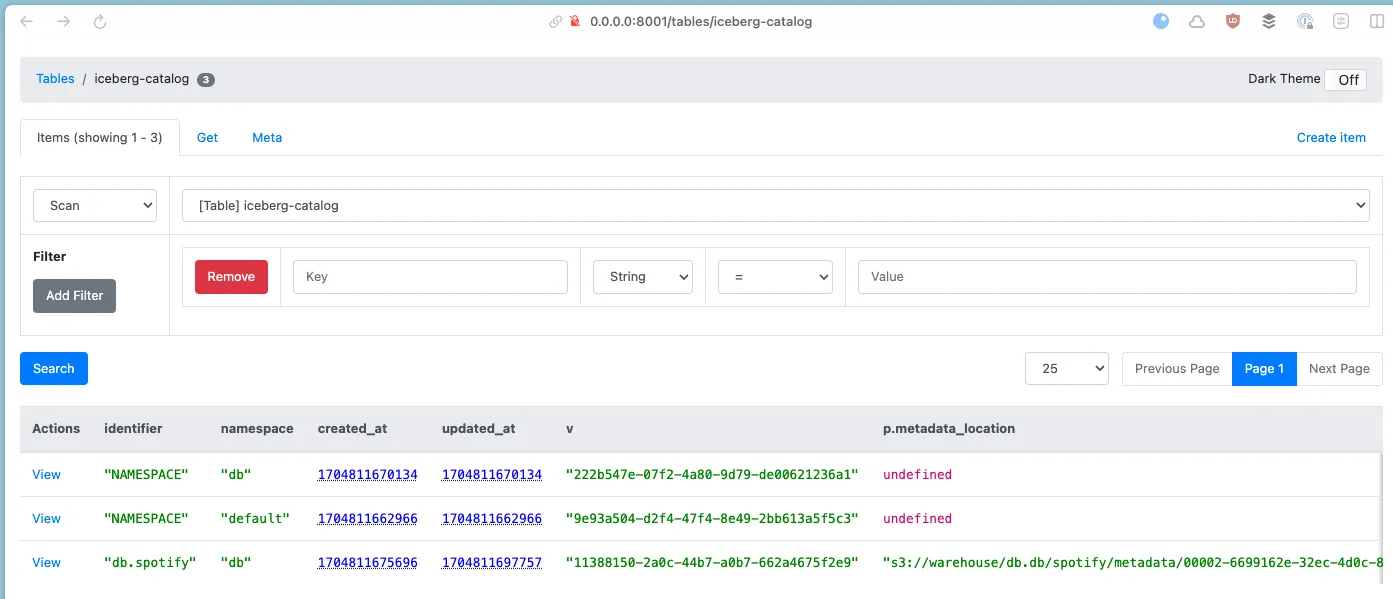
Whilst the Hive metastore used a relational database to store metadata about the Iceberg table, we can see how the same set of data is stored in DynamoDB by using dynamodb-admin :
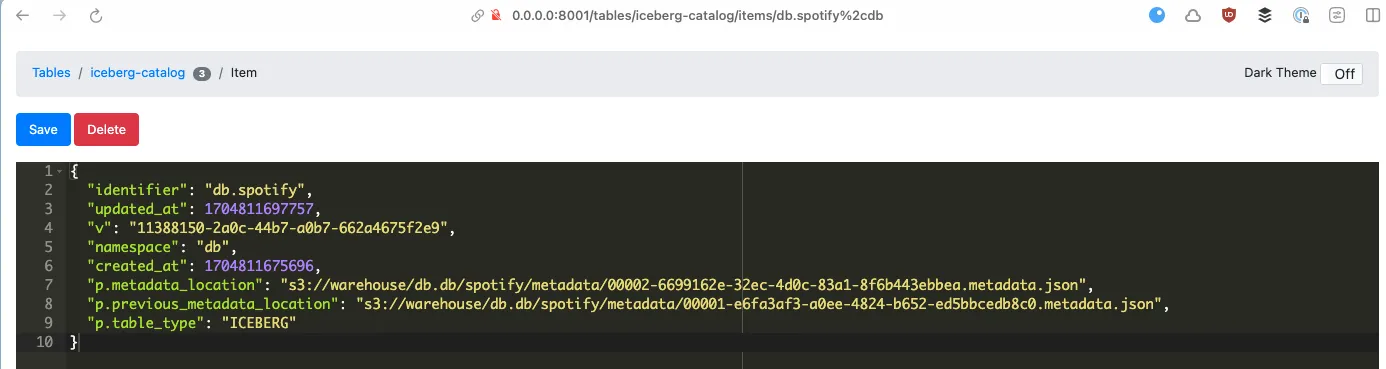
Flink, Iceberg, and JDBC Metastore 🔗
Iceberg actually supports 9 catalog types , but don’t worry—I’m not going to go through each one 😅. We’ve already got a handle on the pattern here:
-
Flink tables are written with both metadata and data to storage (MinIO in our case).
-
Metadata about those tables is held in a Catalog metastore which is persisted somewhere specific to that metastore.
The JDBC Catalog uses a JDBC-compatible database - in the example below, Postgres.
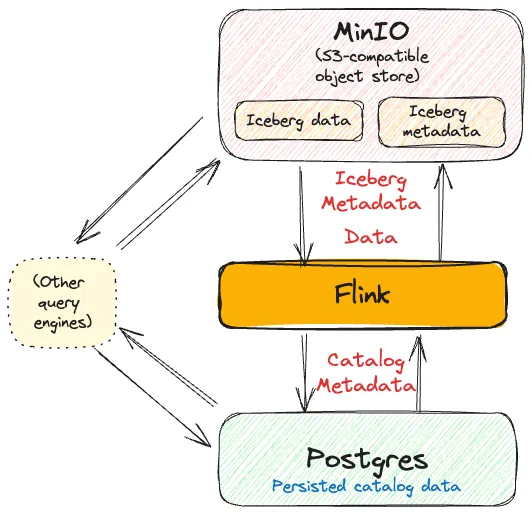
In terms of dependencies you need
-
Flink S3 plugin
-
JDBC Driver for your database
-
Iceberg JARs
-
AWS S3 JARs
You can find the full example on GitHub .
I set the credentials for the S3 storage as environment variables —there is probably a better way to do this.
Let’s go ahead and create the catalog:
CREATE CATALOG c_iceberg_jdbc WITH (
   'type'                 = 'iceberg',
   'io-impl'              = 'org.apache.iceberg.aws.s3.S3FileIO',
   'warehouse'            = 's3://warehouse',
   's3.endpoint'          = 'http://minio:9000',
   's3.path-style-access' = 'true',
   'catalog-impl'         = 'org.apache.iceberg.jdbc.JdbcCatalog',
   'uri'                  ='jdbc:postgresql://postgres:5432/?user=dba&password=rules');
You know the drill by now—create the database, set it as current, create the table and populate it:
CREATE DATABASE `c_iceberg_jdbc`.`db01`;
USE `c_iceberg_jdbc`.`db01`;
CREATE TABLE t_foo (c1 varchar, c2 int);
INSERT INTO t_foo VALUES ('a',42);
The Iceberg table written to MinIO (S3) is as before - a mixture of /data and /metadata.
The difference this time round is where we’re storing the catalog.
Querying Postgres shows us the metastore tables:
dba=# \dt
                   List of relations
 Schema |             Name             | Type  | Owner
--------+------------------------------+-------+-------
 public | iceberg_namespace_properties | table | dba
 public | iceberg_tables               | table | dba
(2 rows)

dba=# \d iceberg_tables
                             Table "public.iceberg_tables"
           Column           |          Type           | Collation | Nullable | Default
----------------------------+-------------------------+-----------+----------+---------
 catalog_name               | character varying(255)  |           | not null |
 table_namespace            | character varying(255)  |           | not null |
 table_name                 | character varying(255)  |           | not null |
 metadata_location          | character varying(1000) |           |          |
 previous_metadata_location | character varying(1000) |           |          |
Indexes:
    "iceberg_tables_pkey" PRIMARY KEY, btree (catalog_name, table_namespace, table_name)
And the table’s metadata itself:
dba=# SELECT * FROM iceberg_tables;

catalog_name    | table_namespace | table_name | metadata_location                                                                           | previous_metadata_location
----------------+-----------------+------------+---------------------------------------------------------------------------------------------+---------------------------------------------------------------------------------------------
c_iceberg_jdbc  | db01            | t_foo      | s3://warehouse/db01/t_foo/metadata/00001-bdf5e336-36c1-4531-b6bf-9d90821bc94d.metadata.json | s3://warehouse/db01/t_foo/metadata/00000-a81cb608-6e46-42ab-a943-81230ad90b3d.metadata.json

(1 row)
In Conclusion… 🔗
If you’ve stuck with me this far, well done! 🙂 My aim was not to put you through the same pain as I had in traversing this, but to summarise the key constants and variables when using the different components and catalogs.