| This post originally appeared on the Decodable blog. |
Sometimes it’s not possible to have too much of a good thing, and whilst this blog may look at first-glance rather similar to the one that I published just recently , today we’re looking at a 100% pure Apache solution. Because who knows, maybe you prefer rolling your own tech stacks instead of letting Decodable do it for you 😉.
Apache Iceberg is an open-table format (OTF) which along with Delta Lake has been gaining a huge amount of traction in recent months. Supported by most of the big platforms—including now, notably, Databricks with their acquisition of Tabular—it’s proving popular in "Data Lakehouse" implementations. This splices the concept of data lake (chuck it all in an object store and worry about it later) with that of a data warehouse (y’know, a bit of data modeling and management wouldn’t be entirely the worst idea ever). Apache Hudi and Apache Paimon are also part of this cohort, although with less apparent traction so far.
Let’s look at implementing a very common requirement: taking a stream of data in Kafka and writing it to Iceberg. Depending on your pipeline infrastructure of choice you might decide to do this using Kafka Connect , or as is the case commonly these days, Apache Flink—and that’s what we’re going to look at here. Using Flink SQL for streaming data to Iceberg also gives us the advantage of being able to do some transformation to the data directly with SQL.

tl;dr Create a Source; Create a Sink 🔗
Let’s leave the messy and boring dependency prerequisites for later, and jump straight to the action. For now, all you need to know for getting data from Kafka to Iceberg with Flink SQL is that you need to do the following:
-
Create a Kafka *source*table
-
Create an Iceberg *sink*table
-
Submit an
INSERTthat reads data from the Kafka source and writes it to the Iceberg sink
The Kafka source needs to declare the schema of the data in the topic, its serialisation format, and then configuration details about the topic and broker:
CREATE TABLE t_k_orders
  (
     orderId          STRING,
     customerId       STRING,
     orderNumber      INT,
     product          STRING,
     backordered      BOOLEAN,
     cost             FLOAT,
     description      STRING,
     create_ts        BIGINT,
     creditCardNumber STRING,
     discountPercent  INT
  ) WITH (
    'connector'                    = 'kafka',
    'topic'                        = 'orders',
    'properties.bootstrap.servers' = 'broker:29092',
    'scan.startup.mode'            = 'earliest-offset',
    'format'                       = 'json'
  );
This is for reading a Kafka topic called orders with a payload that looks like this:
$ kcat -b broker:29092 -C -t orders -c1

{
    "create_ts": 1719830895031,
    "customerId": "e6658457-532f-6daa-c31b-7c136db250e0",
    "product": "Enormous Granite Table",
    "cost": 122.30769057331563,
    "creditCardNumber": "1211-1221-1234-2201",
    "backordered": false,
    "orderNumber": 0,
    "orderId": "f5e7256c-1572-b986-a4fc-ba22badac9cd",
    "discountPercent": 8,
    "description": "Alias eligendi quam perspiciatis quia eos quis tenetur."
}
Now to set up the Iceberg sink.
We’re going to combine it with an implicit INSERT and do it as a single piece of DDL.
Before that, let’s make sure that we get some data written to the files, by telling Flink to periodically checkpoint and flush the data to Iceberg:
SET 'execution.checkpointing.interval' = '60sec';All that’s left to do now is create the Iceberg table, using the CREATE TABLE…AS SELECT syntax:
CREATE TABLE t_i_orders WITH (
	  'connector'     = 'iceberg',
	  'catalog-type'  = 'hive',
	  'catalog-name'  = 'dev',
	  'warehouse'     = 's3a://warehouse',
	  'hive-conf-dir' = './conf')
  AS SELECT * FROM t_k_orders;
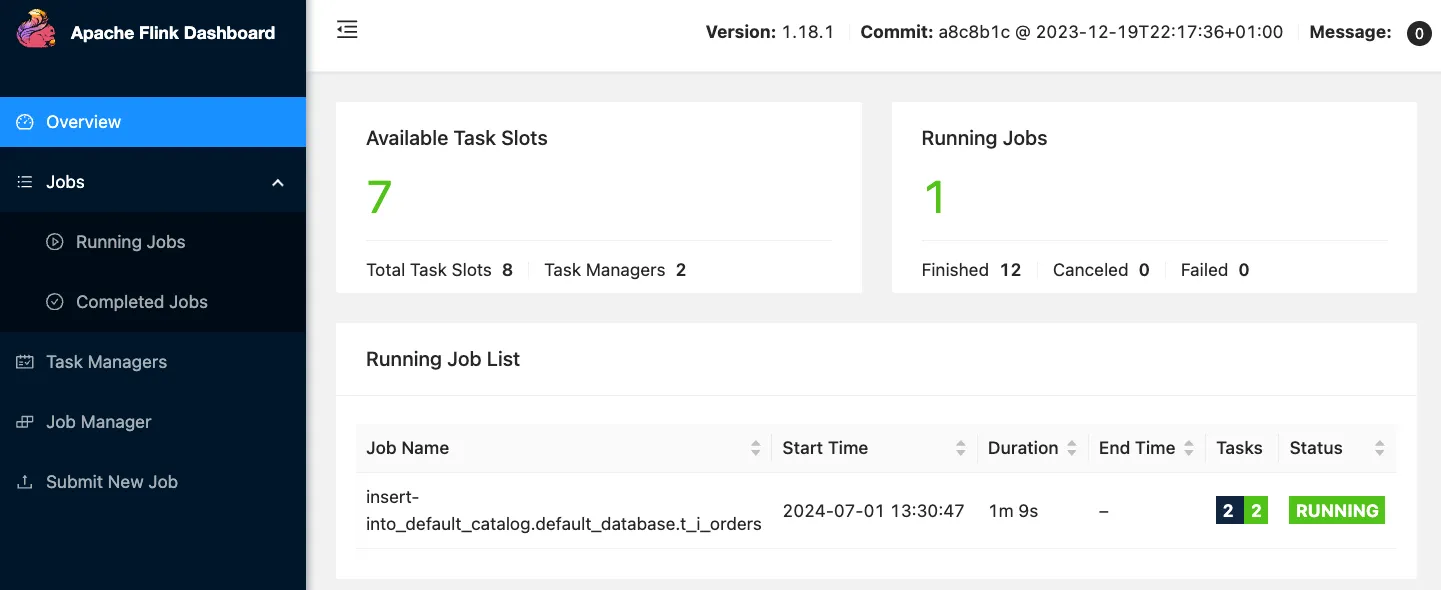
This creates the table, and also a Flink SQL job:
Flink SQL> SHOW JOBS;
+----------------------------------+---------------------------------------------------------+---------+-------------------------+
|                           job id |                                                job name |  status |              start time |
+----------------------------------+---------------------------------------------------------+---------+-------------------------+
| b26d89f20f2665f099609f616ef34d10 | insert-into_default_catalog.default_database.t_i_orders | RUNNING | 2024-07-01T12:30:47.098 |
+----------------------------------+---------------------------------------------------------+---------+-------------------------+
We’re writing the Iceberg files to MinIO, which is a self-hosted S3-compatible object store. Once the job has checkpointed (which I’ve configured to happen every minute) I can see files appearing in the object store:
❯ docker exec mc bash -c \
        "mc ls -r minio/warehouse/"
[2024-06-28 15:23:45 UTC] 6.3KiB STANDARD default_database.db/t_i_orders/data/00000-0-131b86c6-f4fc-4f26-9541-674ec3101ea8-00001.parquet
[2024-06-28 15:22:55 UTC] 2.0KiB STANDARD default_database.db/t_i_orders/metadata/00000-59d5c01b-1ab2-457b-9365-bf1cd056bf1d.metadata.json
[2024-06-28 15:23:47 UTC] 3.1KiB STANDARD default_database.db/t_i_orders/metadata/00001-5affbf21-7bb7-4360-9d65-d547211d63ab.metadata.json
[2024-06-28 15:23:46 UTC] 7.2KiB STANDARD default_database.db/t_i_orders/metadata/6bf97c2e-0e10-410f-8db8-c6cc279e3475-m0.avro
[2024-06-28 15:23:46 UTC] 4.1KiB STANDARD default_database.db/t_i_orders/metadata/snap-3773022978137163897-1-6bf97c2e-0e10-410f-8db8-c6cc279e3475.avro
So that’s our writing to Iceberg set up and running. Now it’s just Iceberg, so we can use any Iceberg-compatible tooling with it.
Examining the metadata with pyiceberg 🔗
A bunch of Parquet and Avro files in an object store aren’t much use on their own; but combined they make up the Iceberg table format .
A quick way to inspect them is with pyiceberg which offers a CLI.
To use it you need to connect it to a catalog—in my example I’m using the Hive MetaStore, so configure it thus:
export PYICEBERG_CATALOG__DEFAULT__URI=thrift://localhost:9083
export PYICEBERG_CATALOG__DEFAULT__S3__ACCESS_KEY_ID=admin
export PYICEBERG_CATALOG__DEFAULT__S3__SECRET_ACCESS_KEY=password
export PYICEBERG_CATALOG__DEFAULT__S3__PATH_STYLE_ACCESS=true
export PYICEBERG_CATALOG__DEFAULT__S3__ENDPOINT=http://localhost:9000
Now we can find out about the Iceberg table directly:
$ pyiceberg schema default_database.t_i_orders
orderId           string
customerId        string
orderNumber       int
product           string
backordered       boolean
cost              float
description       string
create_ts         long
creditCardNumber  string
discountPercent   int

$ pyiceberg properties get table default_database.t_i_orders
hive-conf-dir                    ./conf
connector                        iceberg
write.parquet.compression-codec  zstd
catalog-type                     hive
catalog-name                     dev
warehouse                        s3a://warehouse
Querying Iceberg data with DuckDB 🔗
Having poked around the metadata, let’s query the data itself. There are a variety of engines and platforms that can read Iceberg data, including Flink (obviously!), Apache Spark , Trino , Snowflake , Presto , BigQuery , and ClickHouse . Here I’m going to use DuckDB.
We’ll install a couple of libraries that are needed; iceberg (can you guess why?!) and httpfs (because we’re reading data from S3/MinIO):
INSTALL httpfs;
INSTALL iceberg;
LOAD httpfs;
LOAD iceberg;
Then we set up the connection details for the local MinIO instance:
CREATE SECRET minio (
    TYPE S3,
    KEY_ID 'admin',
    SECRET 'password',
    REGION 'us-east-1',
    ENDPOINT 'minio:9000',
    URL_STYLE 'path',
    USE_SSL 'false'
);
Finally, let’s query the data. There’s no direct catalog support in DuckDB yet so we have to point it directly at the Iceberg manifest file:
SELECT count(*) AS row_ct,
       strftime(to_timestamp(max(create_ts)/1000),'%Y-%m-%d %H:%M:%S') AS max_ts,
       AVG(cost) AS avg_cost,
       MIN(cost) AS min_cost
 FROM iceberg_scan('s3://warehouse/default_database.db/t_i_orders/metadata/00015-a166b870-551b-4279-a9f9-ef3572b53816.metadata.json');
┌────────┬─────────────────────┬────────────────────┬───────────┐
| row_ct | max_ts | avg_cost | min_cost |
| int64 | varchar | double | float |
├────────┼─────────────────────┼────────────────────┼───────────┤
| 1464 | 2024-07-01 11:48:13 | 115.64662482569126 | 100.01529 |
└────────┴─────────────────────┴────────────────────┴───────────┘Back to the start ↩️ 🔗
Well that wasn’t so bad, right? In fact, pretty simple, I would say. Create a table, create a sink, and off you go.
There are a few bits that I hugely skimmed over in my keenness to show you the Iceberg-y goodness which I’m now going to cover in more detail
-
When I created the sink the CTAS statement did a lot of heavy lifting in terms of its potential power, and I’m going to discuss that some more below
-
I presented my working Iceberg deployment as a fait accompli, when in reality it was the output of rather a lot of learning and random jiggling until I got it to work—so I’m going to explain that bit too.
All the power of SQL 💪 🔗
Let’s have a look at this innocuous CTAS that we ran above:
CREATE TABLE t_i_orders WITH (
	  'connector' = 'iceberg',
	  'catalog-type'='hive',
	  'catalog-name'='dev',
	  'warehouse' = 's3a://warehouse',
	  'hive-conf-dir' = './conf')
  AS SELECT * FROM t_k_orders;
It’s doing several things, only one of which is particularly obvious:
-
The obvious: creating a table with a bunch of Iceberg properties
-
Less obvious (1): defining the schema for the Iceberg table implicitly as matching that of the source
t_k_orders -
Less obvious (2): populating the Iceberg table with an unmodified stream of records fetched from Kafka
Looking at that final point though, we could do so much more. How about filtering for orders with a high cost value?
CREATE TABLE t_i_orders WITH (
	  'connector' = 'iceberg',
[…]
  AS SELECT *
	   FROM t_k_orders
	  WHERE cost > 100;
Or customers who are VIPs?
CREATE TABLE t_i_orders WITH (
	  'connector' = 'iceberg',
[…]
  AS SELECT *
       FROM t_k_orders
      WHERE customerId IN (SELECT customerId
				             FROM customers
				            WHERE vip_status = 'Gold');

-- Do the same thing but using JOINs
CREATE TABLE t_i_orders WITH (
	  'connector' = 'iceberg',
[…]
  AS SELECT ko.*
       FROM t_k_orders ko
		    INNER JOIN
		    customers c
		    ON ko.customerId = c.customerId
      WHERE c.vip_status = 'Gold';
We can also project a different set of columns, perhaps to extract just a subset of the fields needed for optimisation reasons:
CREATE TABLE t_i_orders WITH (
	  'connector' = 'iceberg',
[…]
  AS SELECT orderId, product, cost
       FROM t_k_orders;
Finally, we don’t have to use CTAS. Perhaps you simply want to decouple the creation from the population, or you want to have multiple streams populating the same sink and keeping things separate is more logical. The above two examples combined might look like this:
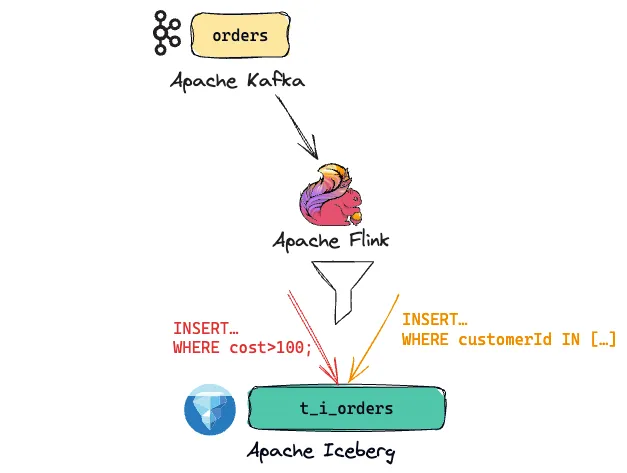
-- Create the Iceberg sink.
-- Using the LIKE syntax we can copy across the schema.
-- N.B. no data is sent to it at this point
CREATE TABLE t_i_orders WITH (
	  'connector' = 'iceberg',
	  'catalog-type'='hive',
	  'catalog-name'='dev',
	  'warehouse' = 's3a://warehouse',
	  'hive-conf-dir' = './conf')
  LIKE t_k_orders;

-- Now, send data to it
INSERT INTO t_i_orders
SELECT *
	   FROM t_k_orders
	  WHERE cost > 100;

-- Send more data to it
INSERT INTO t_i_orders
SELECT ko.*
       FROM t_k_orders ko
		    INNER JOIN
		    customers c
		    ON ko.customerId = c.customerId
      WHERE c.vip_status = 'Gold';
The INSERT statements are streaming jobs that run continuously, as can be seen from the SHOW JOBS output:
Flink SQL> SHOW JOBS;
+----------------------------------+---------------------------------------------------------+----------+-------------------------+
|                           job id |                                                job name |   status |              start time |
+----------------------------------+---------------------------------------------------------+----------+-------------------------+
| 949b0010858fdc29f5176b532b77dc50 | insert-into_default_catalog.default_database.t_i_orders |  RUNNING | 2024-07-01T15:47:01.183 |
| 66f2277aee439ae69ad7300a86725947 | insert-into_default_catalog.default_database.t_i_orders |  RUNNING | 2024-07-01T15:46:29.247 |
+----------------------------------+---------------------------------------------------------+----------+-------------------------+
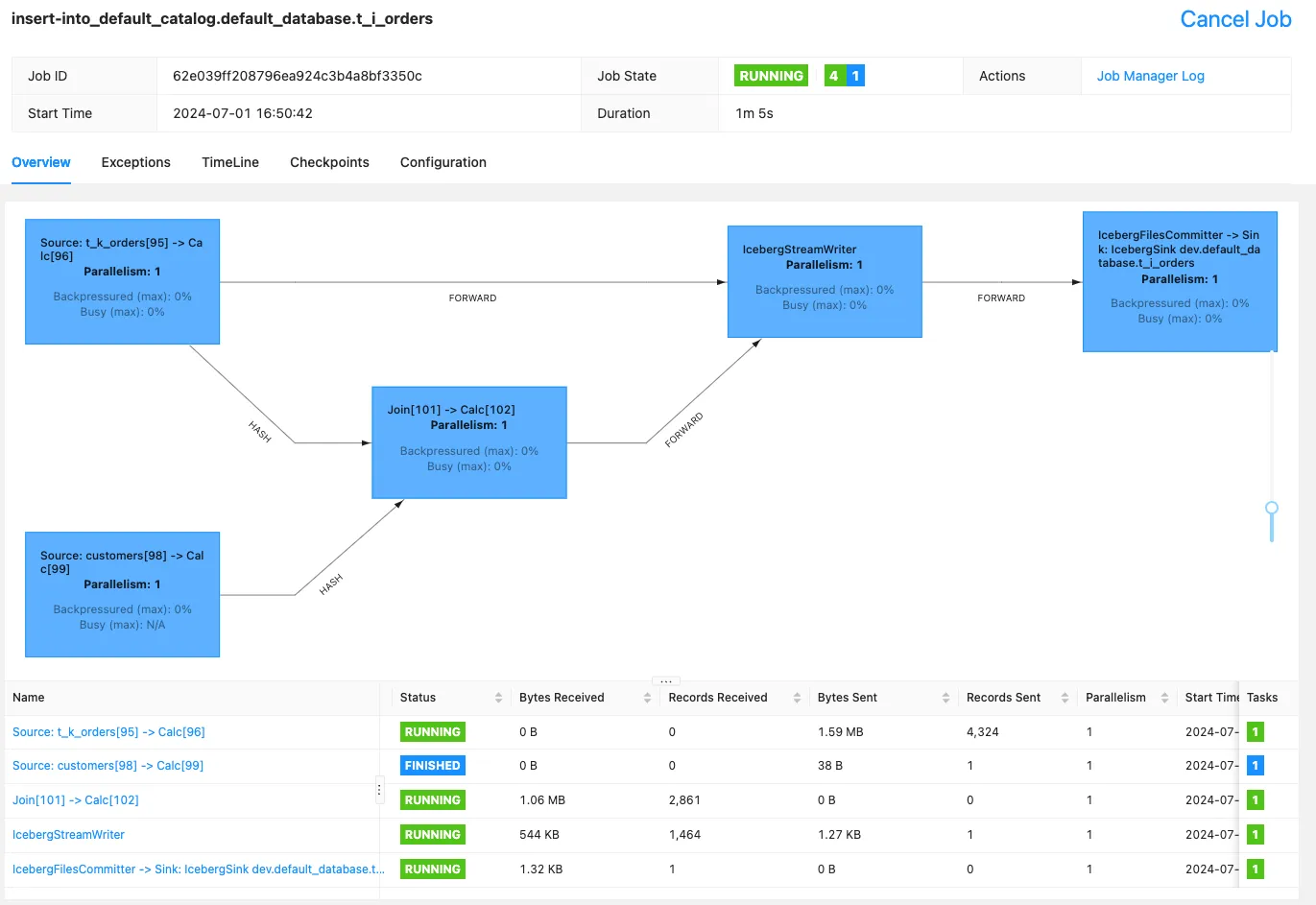
Finally, you could even combine the two INSERT`s with a `UNION:
INSERT INTO t_i_orders
SELECT *
	   FROM t_k_orders
	  WHERE cost > 100
UNION ALL
SELECT ko.*
       FROM t_k_orders ko
		    INNER JOIN
		    customers c
		    ON ko.customerId = c.customerId
      WHERE c.vip_status = 'Gold';
This gives us a single Flink job that looks like this:
Iceberg table properties 🔗
There are various properties that you can configure for an Iceberg table. In my example above I just specified the bare minimum and let everything else use its default.
You can specify additional properties when you create the table.
For example, to change the format of the data files from the default of Parquet to ORC, set the write.format.default:
CREATE TABLE iceberg_test WITH (
    'connector' = 'iceberg',
    'catalog-type'='hive',
    'catalog-name'='dev',
    'warehouse' = 's3a://warehouse',
    'hive-conf-dir' = './conf',
    'write.format.default'='orc');
Which when populated stores the data, as expected, in ORC format:
❯ docker exec mc bash -c \
        "mc ls -r minio/warehouse/"
[2024-07-01 10:41:49 UTC]   398B STANDARD default_database.db/iceberg_test/data/00000-0-023674bd-dc7d-4249-8c50-8c1238881e57-00001.orc
[…]
You can also change the value after creation:
Flink SQL> ALTER TABLE iceberg_test SET ('write.format.default'='avro');
[INFO] Execute statement succeed.
or reset it to its default value:
Flink SQL> ALTER TABLE iceberg_test RESET ('write.format.default');
[INFO] Execute statement succeed.
Iceberg dependencies for Flink 🔗
As I explored (at length 😅) in several previous articles , you often need to add dependencies to Flink for it to work with other technologies. Whether it’s formats (such as Parquet), catalogs (such as Hive), or connectors (such as Iceberg), juggling JARs is one of the most fun aspects of running Flink yourself. Of course, if you don’t enjoy that kind of fun, you could just let Decodable do it for you .
Catalog 🔗
To use Iceberg you need to have a catalog metastore. Catalogs in Flink can be a bit hairy to understand at first, but have a read of this primer that I wrote for a gentle yet thorough introduction to them.
Iceberg can work with different catalogs (I explore several of them here ), and in this blog article I’ve used the Hive Metastore (HMS).
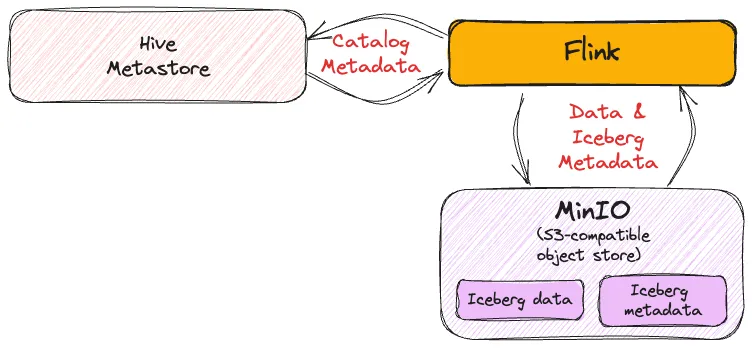
To use the Hive metastore with Flink you need the Hive connector flink-sql-connector-hive-3.1.3 which you can find on Maven repository —make sure you use the correct one for your version of Flink.
As well as the Hive connector, you need Hadoop dependencies. I wrote about this elsewhere but you either install the full Hadoop distribution, or cherry-pick just the JARs needed.
You also need to configure conf/hive-site.xml so that Flink can find the Hive MetaStore:
[…]

   hive.metastore.local
   false


   hive.metastore.uris
   thrift://hms:9083

[…]
Iceberg JARs 🔗
Iceberg support in Flink is provided by the iceberg-flink-runtime JAR.
As with the catalog JAR, make sure you line up your versions—so in this case both Iceberg and Flink.
For Iceberg 1.5.0 and Flink 1.18 I used iceberg-flink-runtime-1.18-1.5.0.jar
Object Store (S3) 🔗
Finally, since we’re writing to data on S3-compatible MinIO, we need the correct JARs for that.
I’m using s3a, which is provided by hadoop-aws-3.3.4.jar .
Flink will also need to know how to authenticate to S3, and in the case of MinIO, how to find it.
One way to do this is supply these details as part of conf/hive-site.xml:
[…]

       fs.s3a.access.key
       admin


       fs.s3a.secret.key
       password


       fs.s3a.endpoint
       http://minio:9000


       fs.s3a.path.style.access
       true

[…]
Want the easy route? 🔗
(Of course, the*really*easy route is to use Decodable , where we do all of this for you. 😁)
I’ve shared on the Decodable examples GitHub repo the following:
-
a Docker Compose so that you can run all of this yourself just by running
docker compose up -
a list of the specific JAR files that I used
-
and more …sample SQL statements, step-by-step README, and some other noodling around with Iceberg and catalogs for good measure.
What if you get in a jam with your JARs? 🔗
Here are the various errors (usually a ClassNotFoundException, but not always) that you can expect to see if you miss a JAR from your dependencies.
The missing JAR shown is based on the following versions:
-
Flink 1.18
-
Hive 3.1.3
-
Iceberg 1.5.0
-
Hadoop 3.3.4
You can find out more here about locating the correct JAR to download and where to put it once you’ve downloaded it.
th, td { padding: 4px; border-bottom: 1px solid black; word-wrap: break-word; font-size: 0.8rem; }
Error
Missing JAR
java.lang.ClassNotFoundException: com.amazonaws.AmazonClientException
aws-java-sdk-bundle-1.12.648.jar
java.lang.ClassNotFoundException: org.apache.commons.configuration2.Configuration
commons-configuration2-2.1.1.jar
java.lang.ClassNotFoundException: org.apache.commons.logging.LogFactory
commons-logging-1.1.3.jar
java.lang.ClassNotFoundException: org.apache.hadoop.hive.metastore.api.NoSuchObjectException
flink-sql-connector-hive-3.1.3_2.12-1.18.1.jar
java.lang.NoClassDefFoundError: Could not initialize class org.apache.hadoop.security.UserGroupInformation
+
Prevents the Flink jobmanager and taskmanager starting if not present, only happens if ` flink-sql-connector-hive-3.1.3_2.12-1.18.1.jar ` is present.
hadoop-auth-3.3.4.jar
java.lang.ClassNotFoundException: Class org.apache.hadoop.fs.s3a.S3AFileSystem not found
hadoop-aws-3.3.4.jar
java.lang.ClassNotFoundException: org.apache.hadoop.conf.Configuration
hadoop-common-3.3.4.jar
java.lang.ClassNotFoundException: org.apache.hadoop.hdfs.HdfsConfiguration
hadoop-hdfs-client-3.3.4.jar
java.lang.ClassNotFoundException: org.apache.hadoop.mapred.JobConf
hadoop-mapreduce-client-core-3.3.4.jar
java.lang.ClassNotFoundException: org.apache.hadoop.thirdparty.com.google.common.base.Preconditions
hadoop-shaded-guava-1.1.1.jar
org.apache.flink.table.api.ValidationException: Could not find any factory for identifier 'iceberg' that implements 'org.apache.flink.table.factories.DynamicTableFactory' in the classpath.
Available factory identifiers are:
blackhole
datagen
[…]
iceberg-flink-runtime-1.18-1.5.0.jar
java.lang.ClassNotFoundException: org.codehaus.stax2.XMLInputFactory2
stax2-api-4.2.1.jar
java.lang.ClassNotFoundException: com.ctc.wstx.io.InputBootstrapper
woodstox-core-5.3.0.jar
java.lang.ClassNotFoundException: org.datanucleus.NucleusContext
This is a really fun one—I got it when I’d not configured`hive.metastore.local` in Flink’s`conf/hive-site.xml`
Conclusion 🔗
I’ve shown you in this blog post how to stream data from Kafka to Iceberg using purely open source tools. I used MinIO for storage, but it would work just the same with S3. The catalog I used was Hive Metastore, but there are others—such as AWS Glue.
If you want to try it out for yourself head to the GitHub repository , and if you want to try loading data from Kafka to Iceberg but don’t fancy running Flink for yourself sign up for a free Decodable account today and give our fully managed service a go.