
| This post originally appeared on the Rittman Mead blog. |
Oracle Stream Analytics (OSA) is a graphical tool that provides “Business Insight into Fast Data”. In layman terms, that translates into an intuitive web-based interface for exploring, analysing, and manipulating streaming data sources in realtime. These sources can include REST, JMS queues, as well as Kafka. The inclusion of Kafka opens OSA up to integration with many new-build data pipelines that use this as a backbone technology.
Previously known as Oracle Stream Explorer, it is part of the SOA component of Fusion Middleware (just as OBIEE and ODI are part of FMW too). In a recent blog it was positioned as “[…] part of Oracle Data Integration And Governance Platform.”. Its Big Data credentials include support for Kafka as source and target, as well as the option to execute across multiple nodes for scaling performance and capacity using Spark.
I’ve been exploring OSA from the comfort of my own Mac, courtesy of Docker and a Docker image for OSA created by Guido Schmutz. The benefits of Docker are many and covered elsewhere, but what I loved about it in this instance was that I didn’t have to download a VM that was 10s of GB. Nor did I have to spend time learning how to install OSA from scratch, which whilst interesting wasn’t a priority compared to just trying to tool out and seeing what it could do. [Update] it turns out that installation is a piece of cake, and the download is less than 1Gb … but in general the principle still stands - Docker is a great way to get up and running quickly with something
In this article we’ll take OSA for a spin, looking at some of the functionality and terminology, and then real examples of use with live Twitter data.
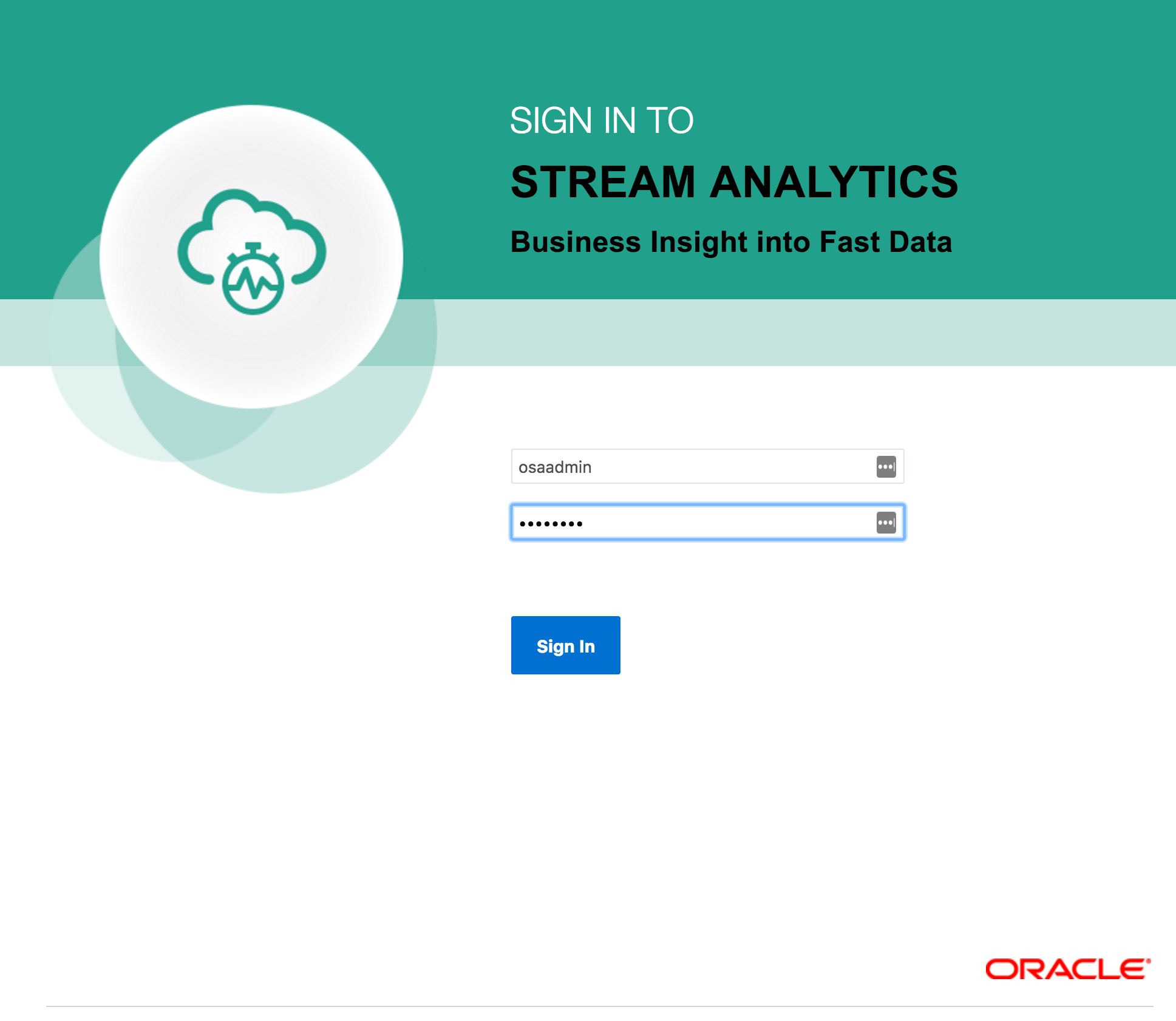
To start with, we sign in to Oracle Stream Analytics:
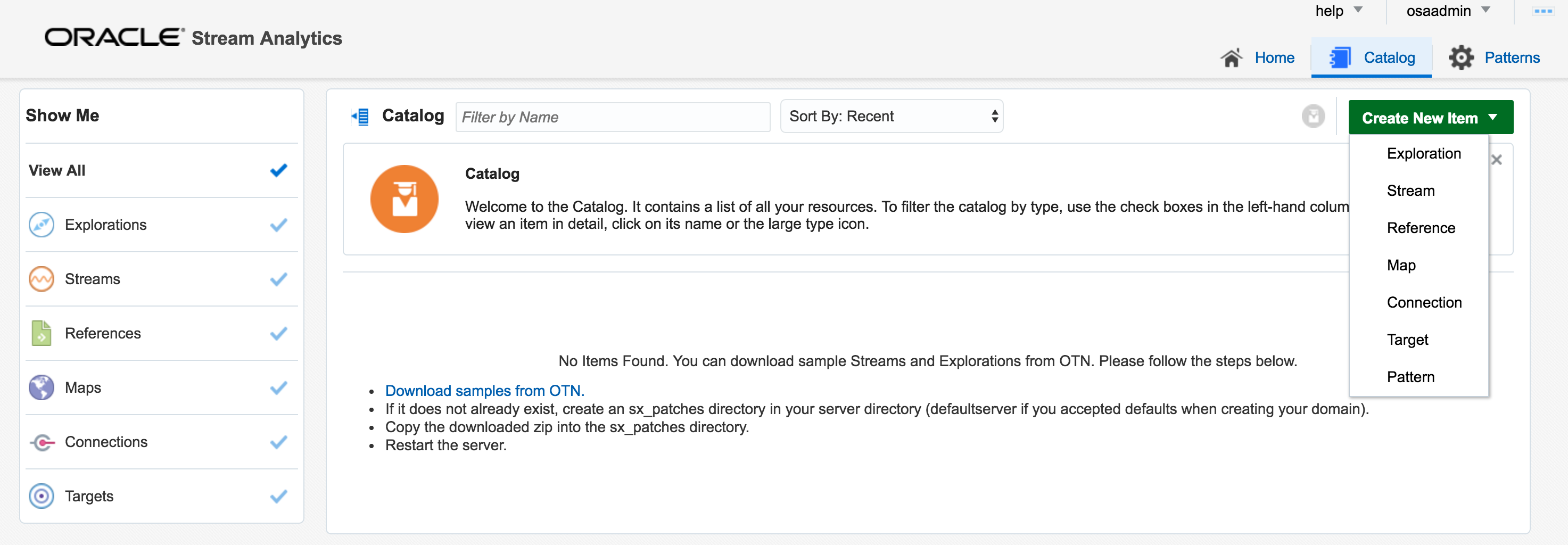
From here, click on the Catalog link, where a list of all the resources are listed. Some of these resource types include:
-
Streams - definitions of sources of data such as Kafka, JMS, and a dummy data generator (event generator)
-
Connections - Servers etc from which Streams are defined
-
Explorations - front-end for seeing contents of Streams in realtime, as well as applying light transformations
-
Targets - destination for transformed streams
Viewing Realtime Twitter Data with OSA 🔗
The first example I’ll show is the canonical big data/streaming example everywhere – Twitter. Twitter is even built into OSA as a Stream source. If you go to https://dev.twitter.com you can get yourself a set of credentials enabling you to query the live Twitter firehose for given hashtags or users.
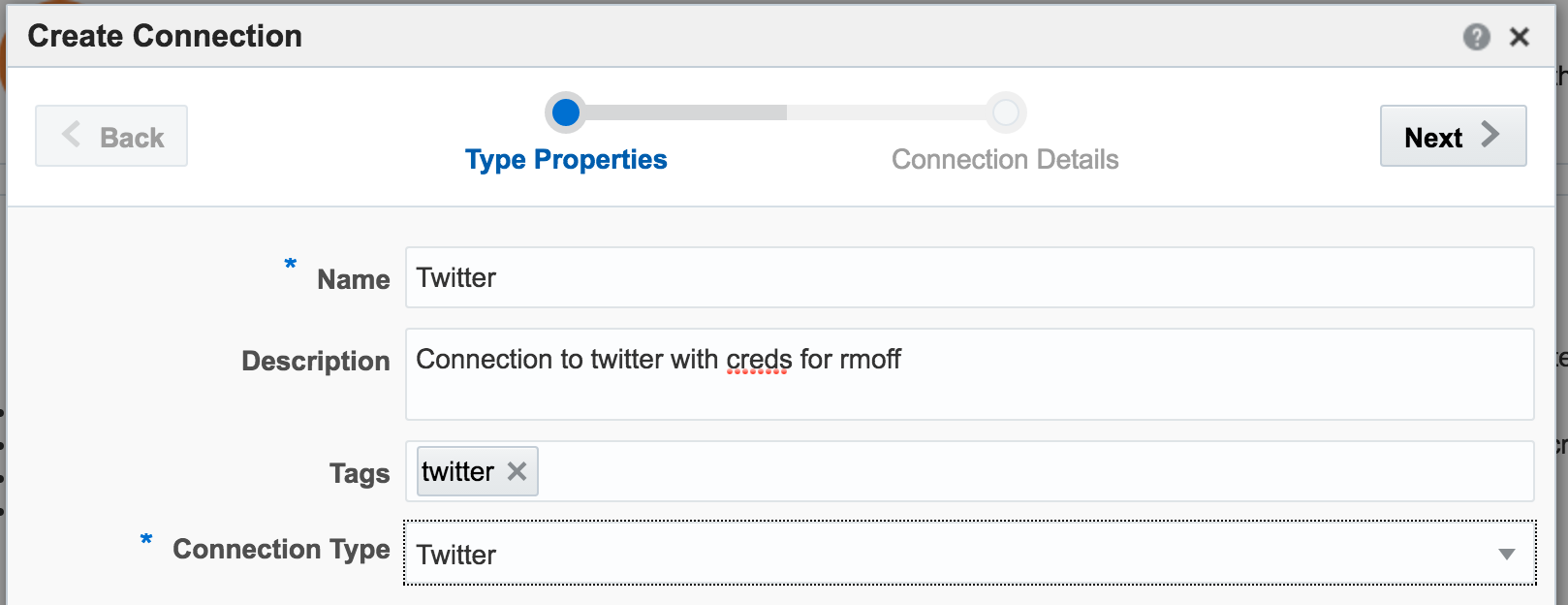
With my twitter dev credentials, I create a new Connection in OSA:
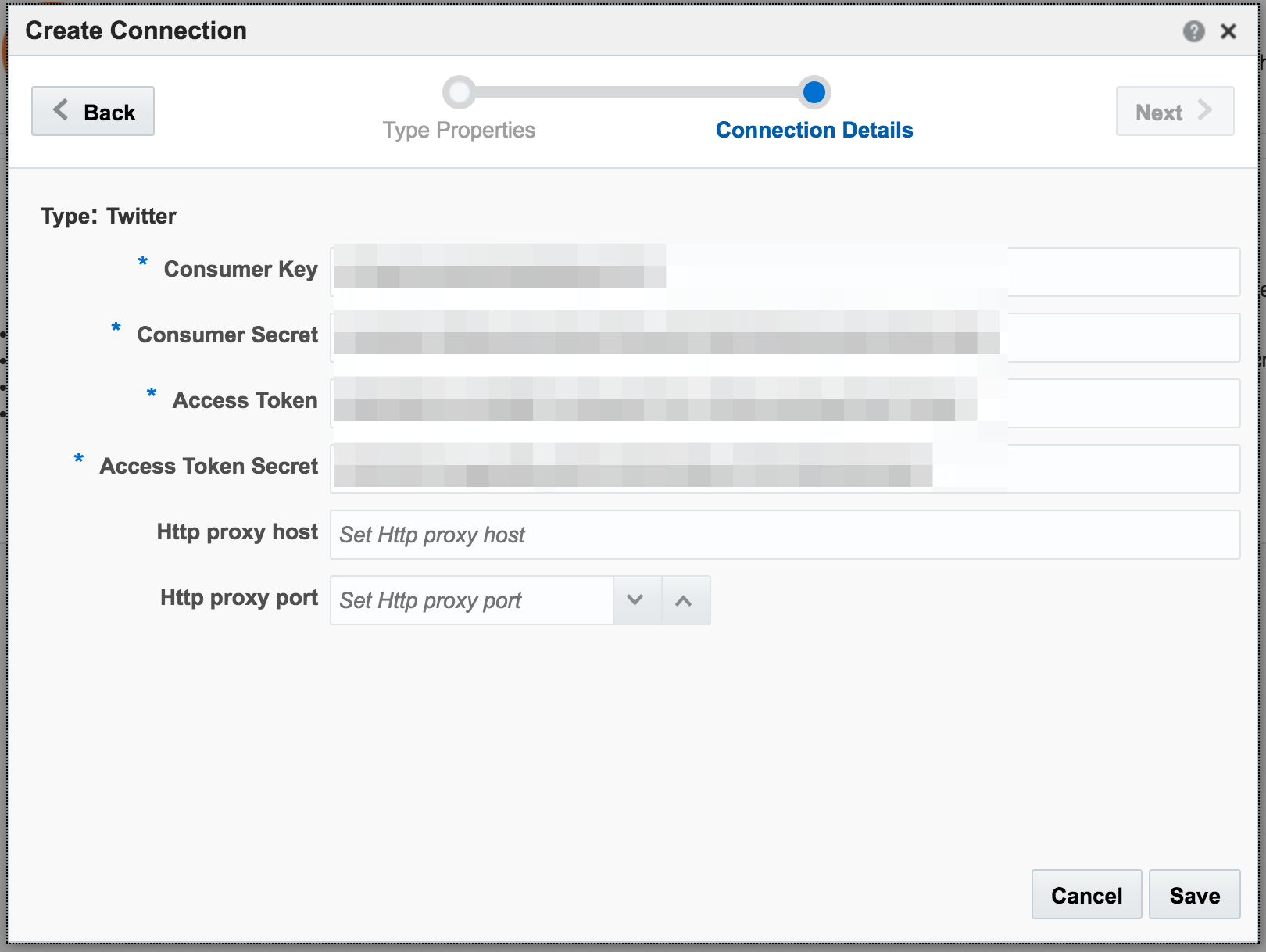
Now we have an entry in the Catalog, for the Twitter connection:
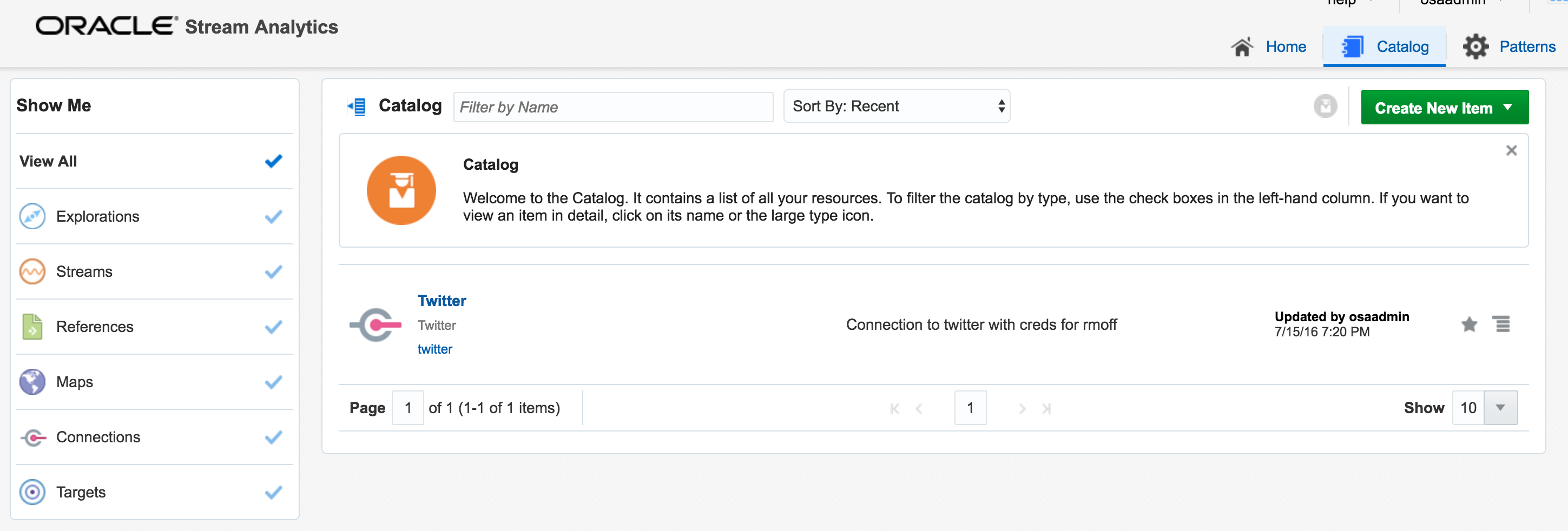
from which we can create a Stream, using the connection and a set of hashtags or users for whom we want to stream tweets:
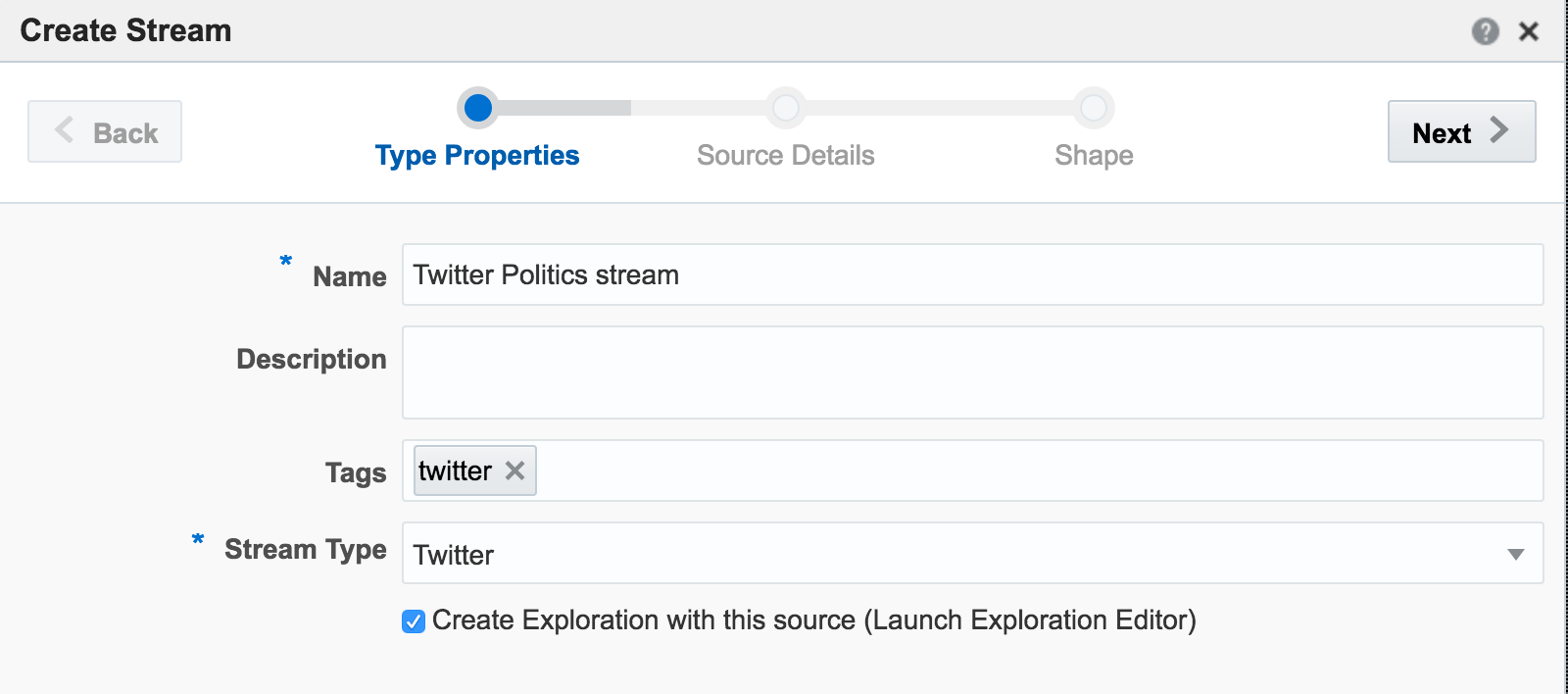
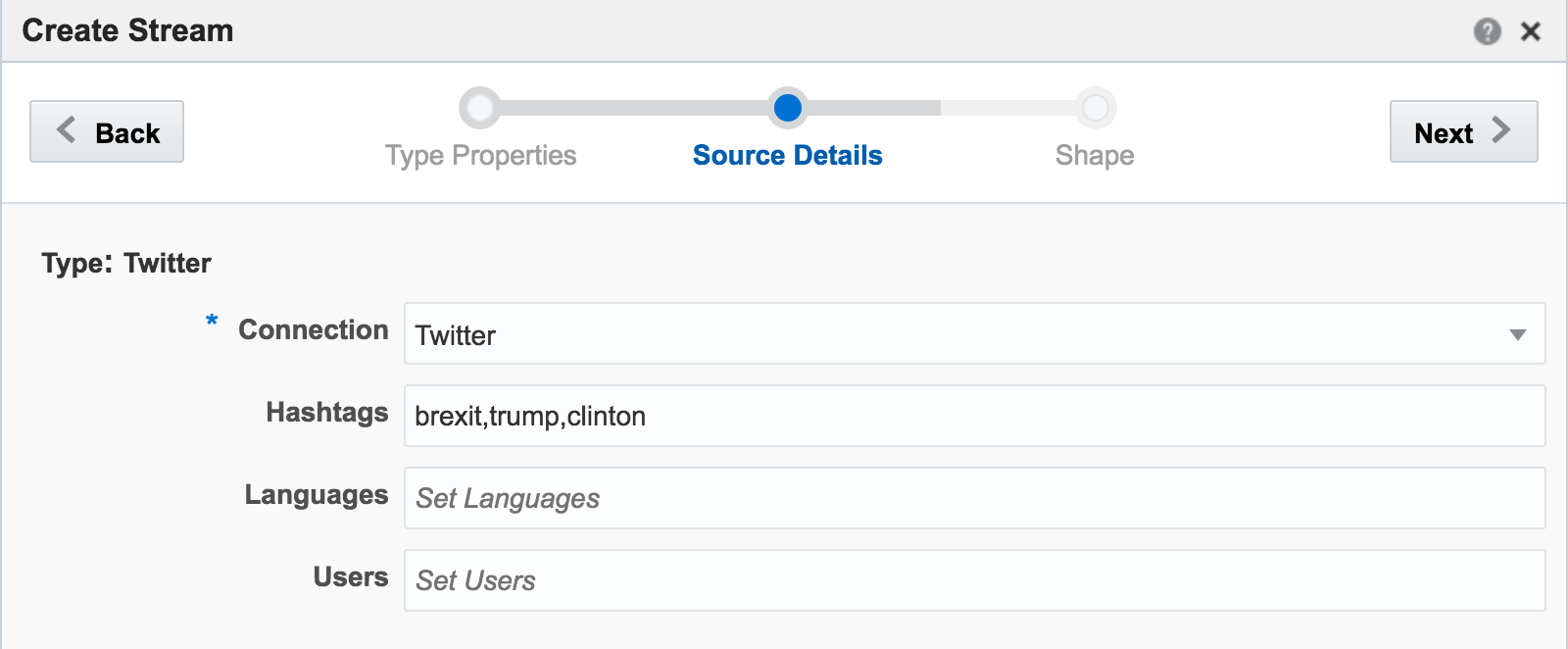
The Shape is basically the schema or data model that is applied for the stream. There is one built-in for Twitter, which we’ll use here:
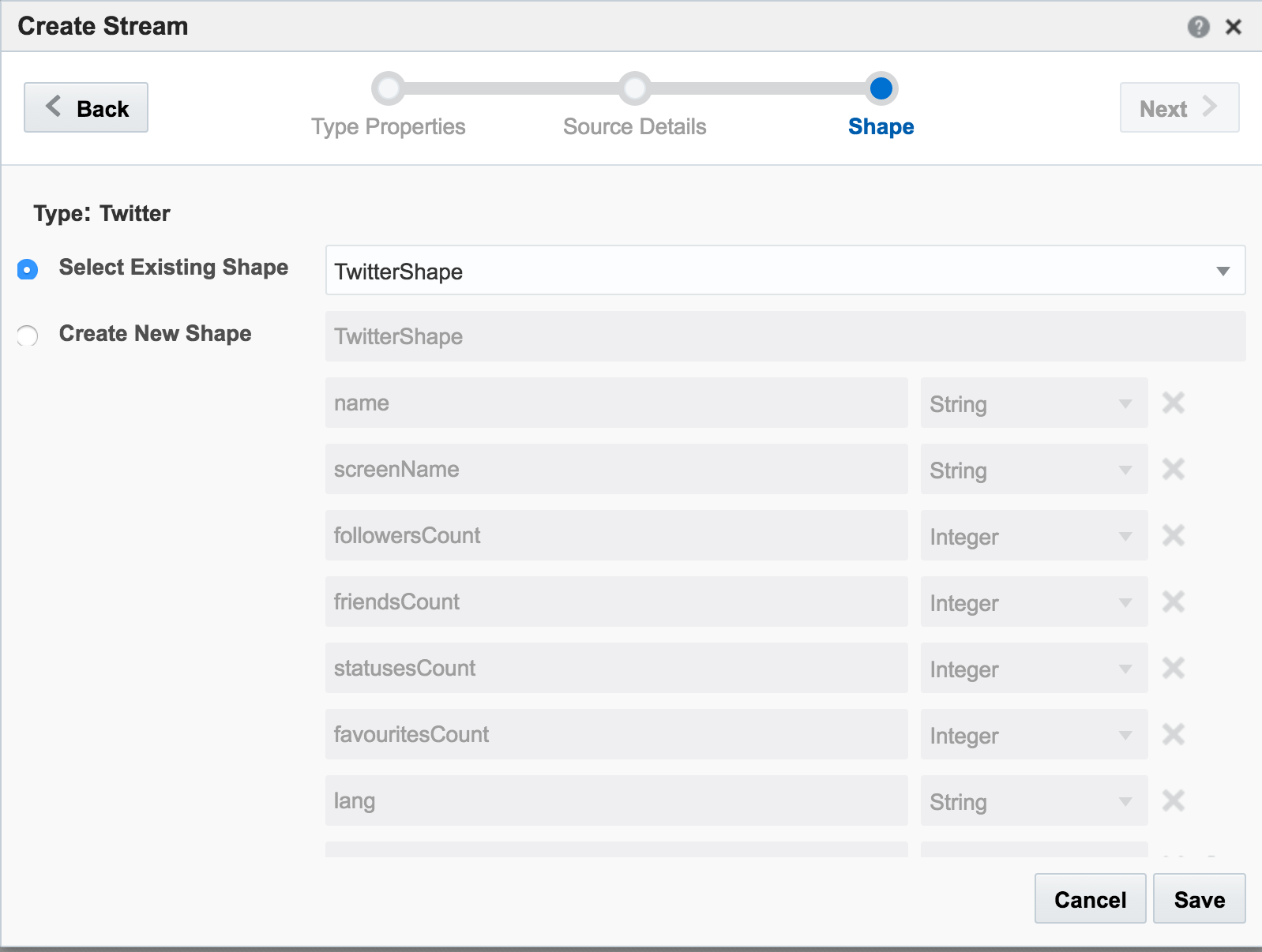
When you click Save, if you get an error Unable to deploy OEP application then check the OSA log file for errors such as unable to reach Twitter, or invalid credentials.
Assuming the Stream is created successfully you are then prompted to create an Exploration from where you can see the Stream in realtime:
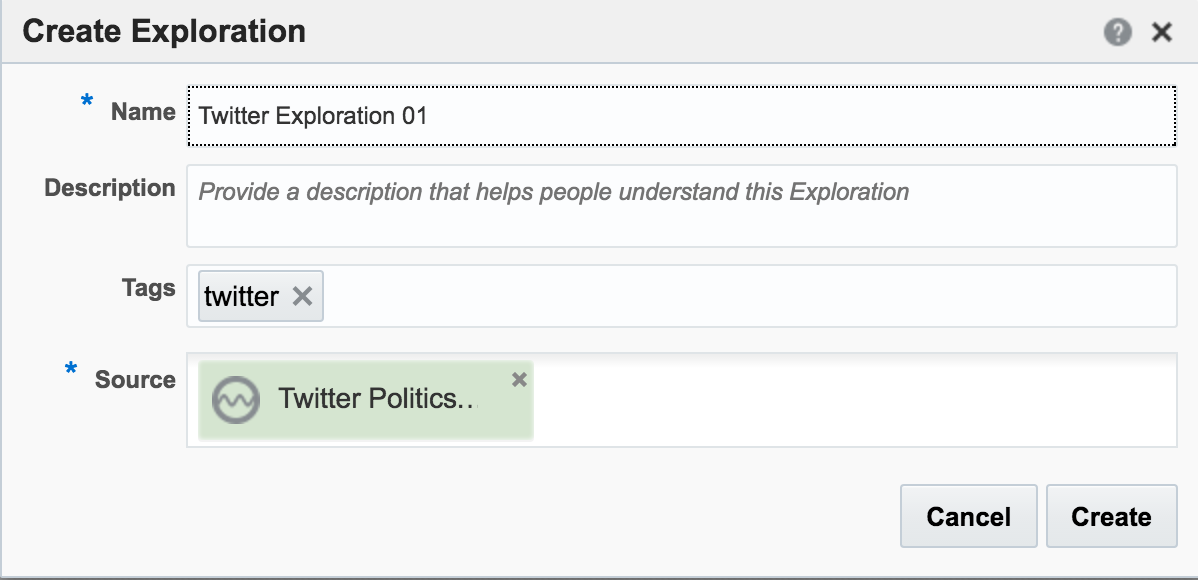
Explorations can have multiple stream sources, and be used to transform the contents, which we’ll see later. For now, after clicking Create, we get our Exploration window, which shows the contents of the stream in realtime:
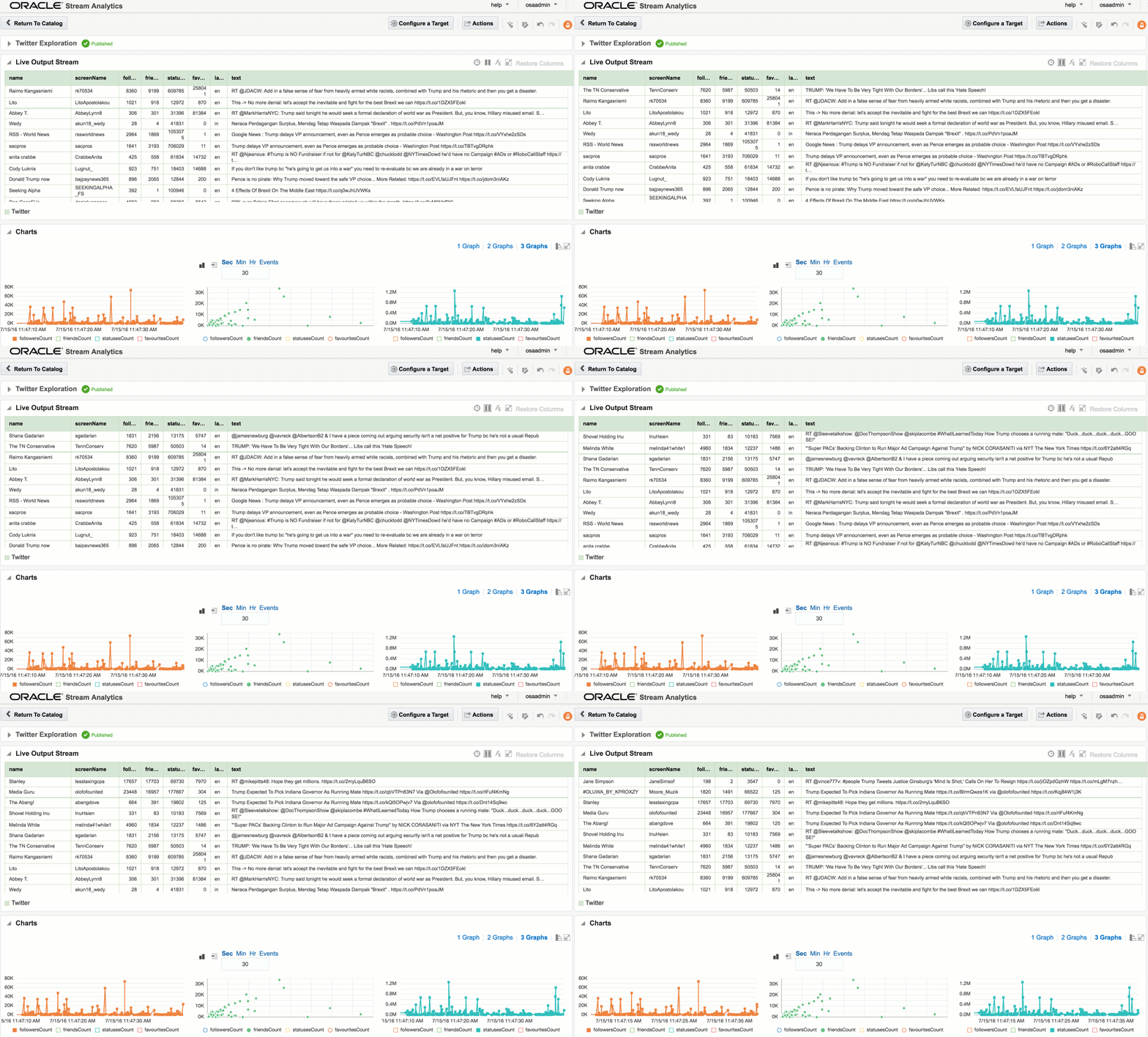
At the bottom of the screen there’s the option to plot one or more charts showing the value of any numeric values in the stream, as can be seen in the animation above.
I’ll leave this example here for now, but finish by using the Publish option from the Actions menu, which makes it available as a source for subsequent analyses.
Adding Lookup Data to Streams 🔗
Let’s look now at some more of the options available for transforming and 'wrangling' streaming data with OSA. Here I’m going to show how two streams can be joined together (but not crossed) based on a common field, and the resulting stream used as the input for a subsequent process. The data is simulated, using a CSV file (read by OSA on a loop) and OSA’s Event Generator.
From the Catalog page I create a new Stream, using Event Generator as the Type:
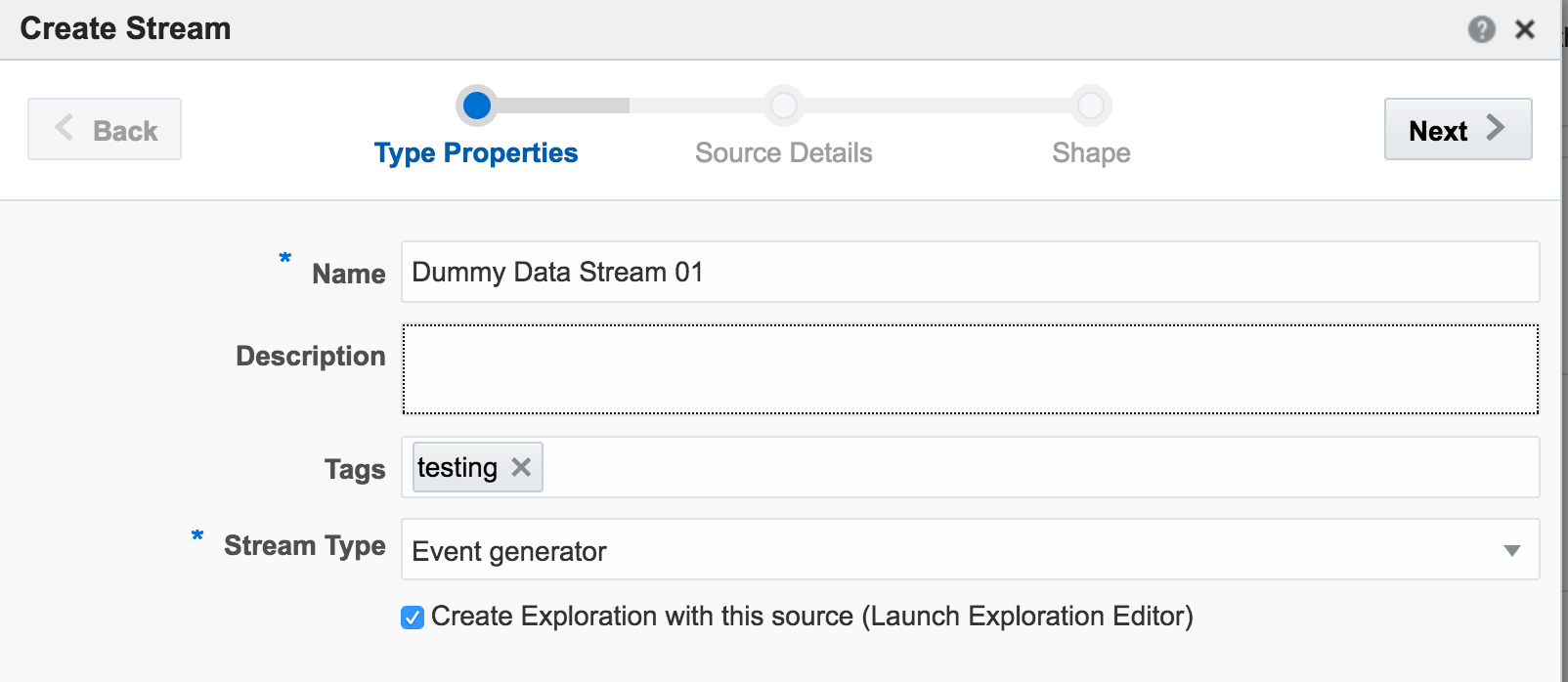
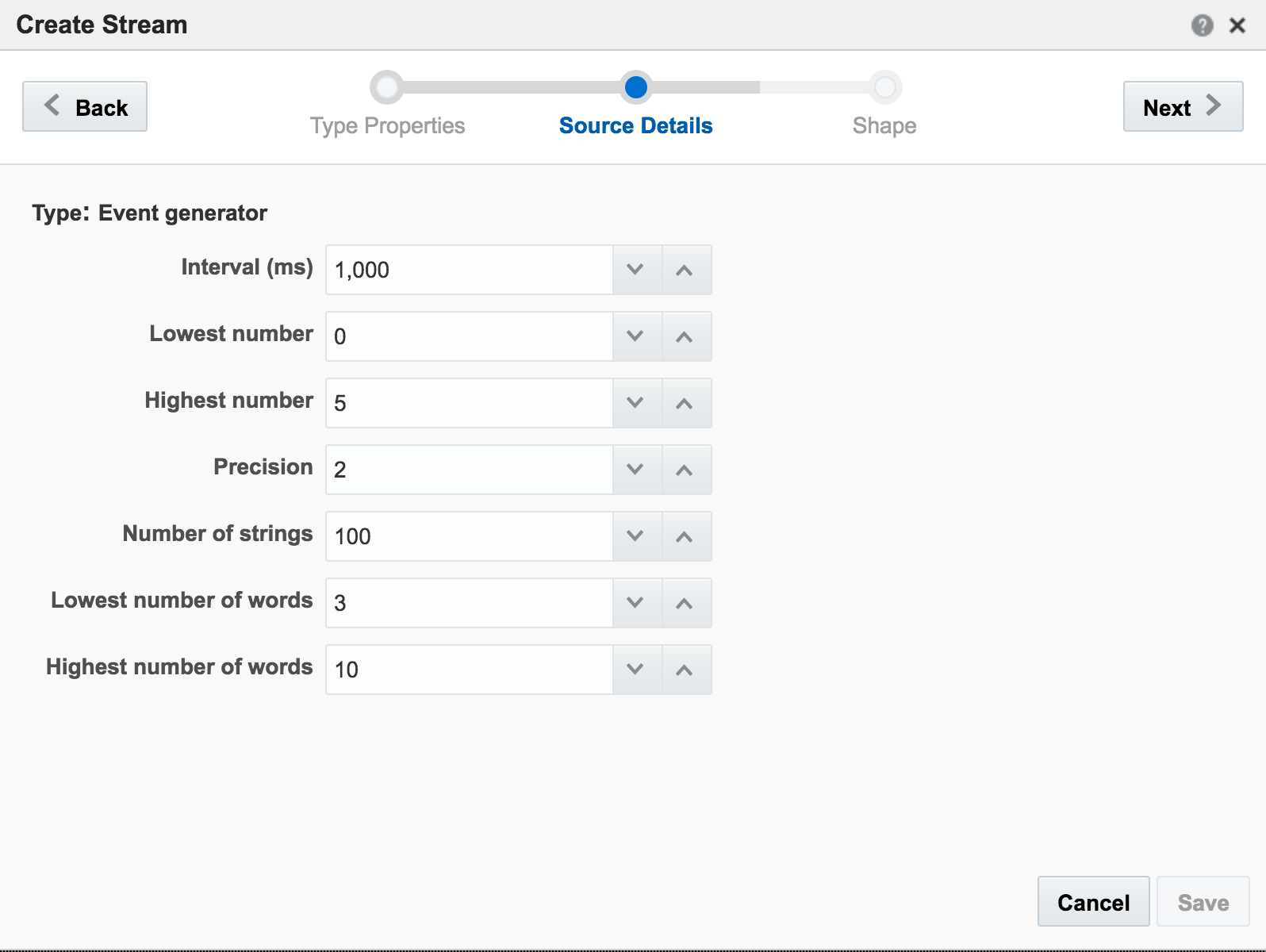
On the second page of the setup I define how frequently I want the dummy events to be generated, and the specification for the dummy data:
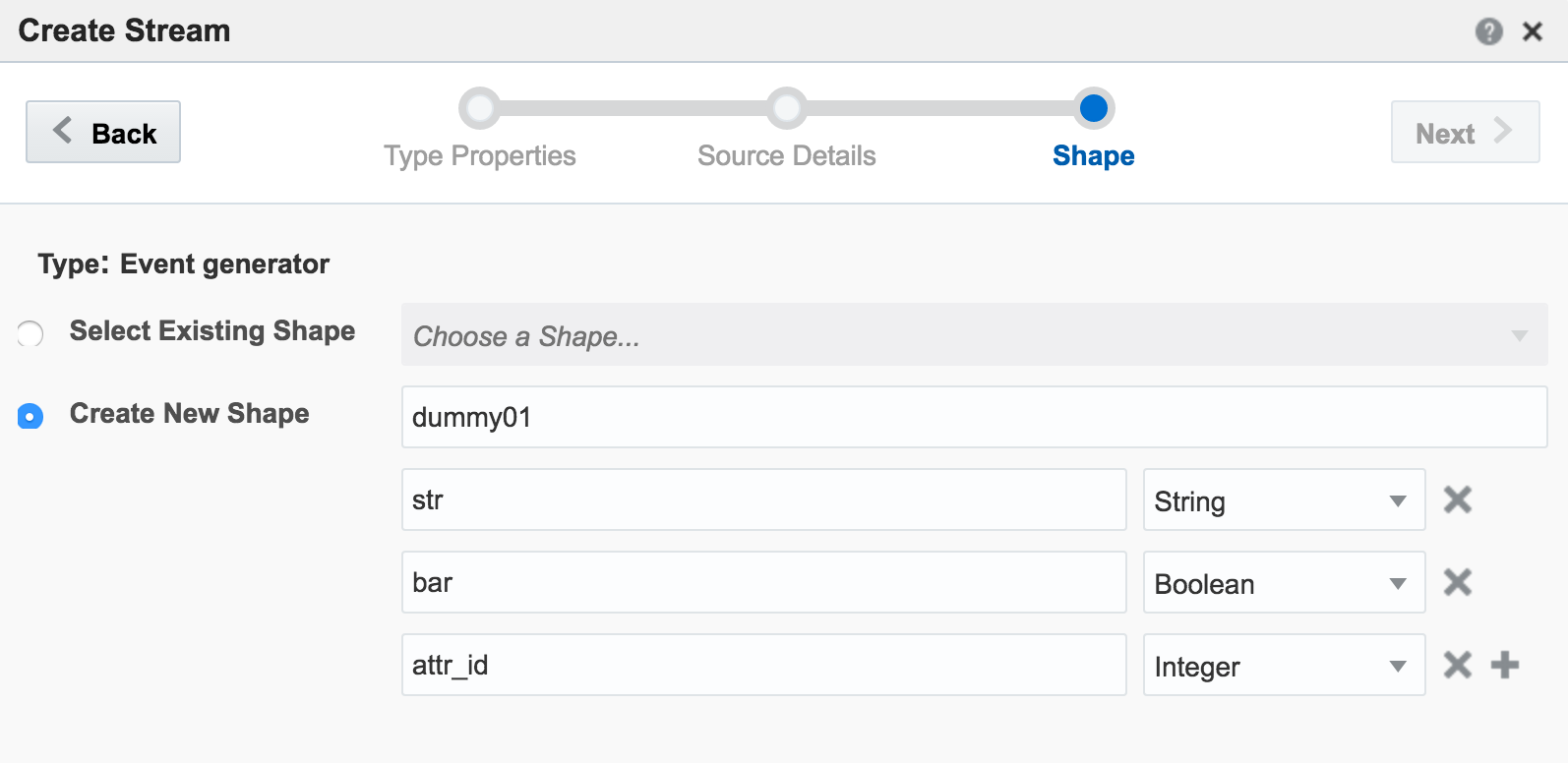
The last bit of setup for the stream is to define the Shape, which is the schema of data that I’d like generated:
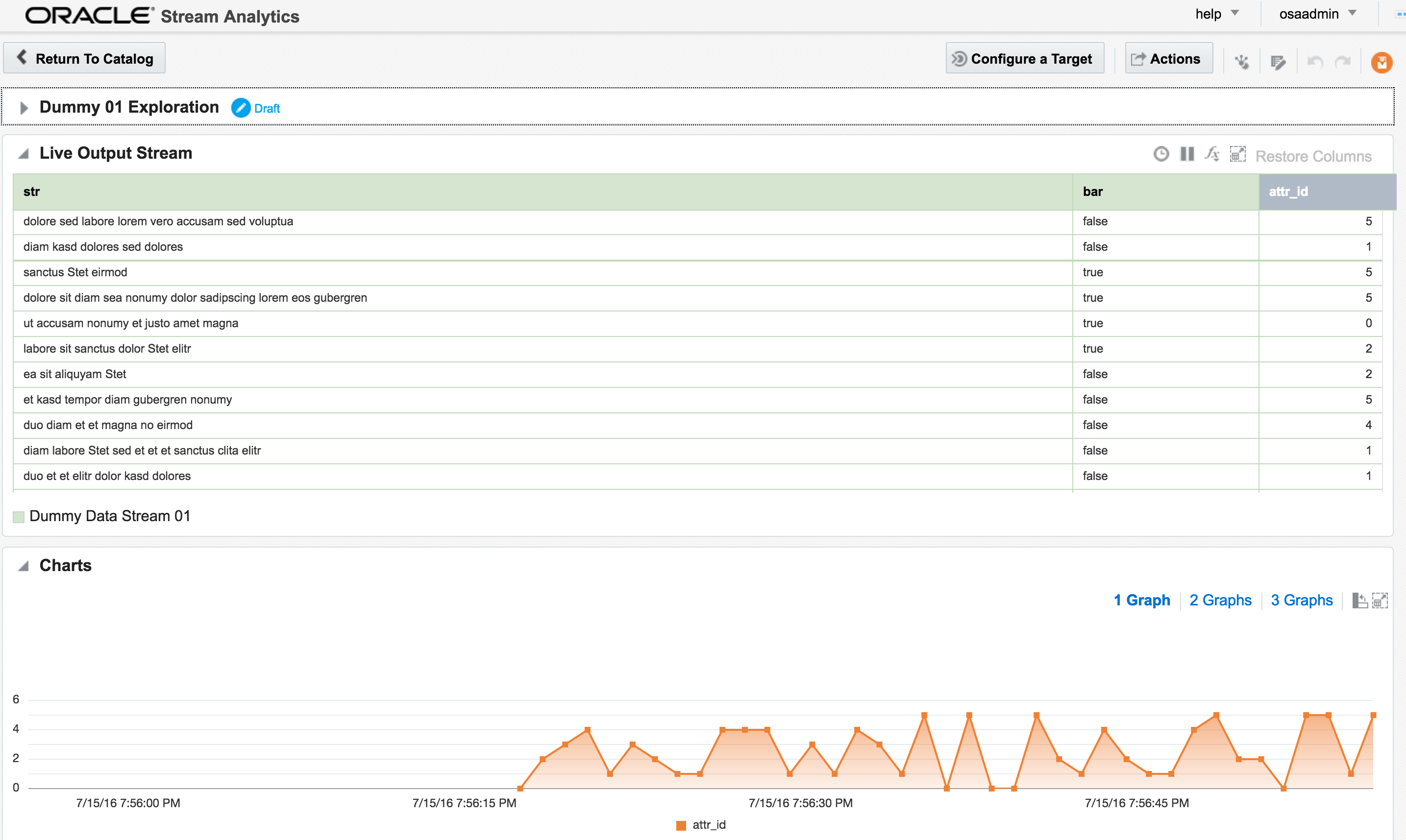
The Exploration for this stream shows the dummy data:
The second stream is going to be sourced from a very simple key/value CSV file:
attr_id,attr_value
1,never
2,gonna
3,give
4,you
5,up
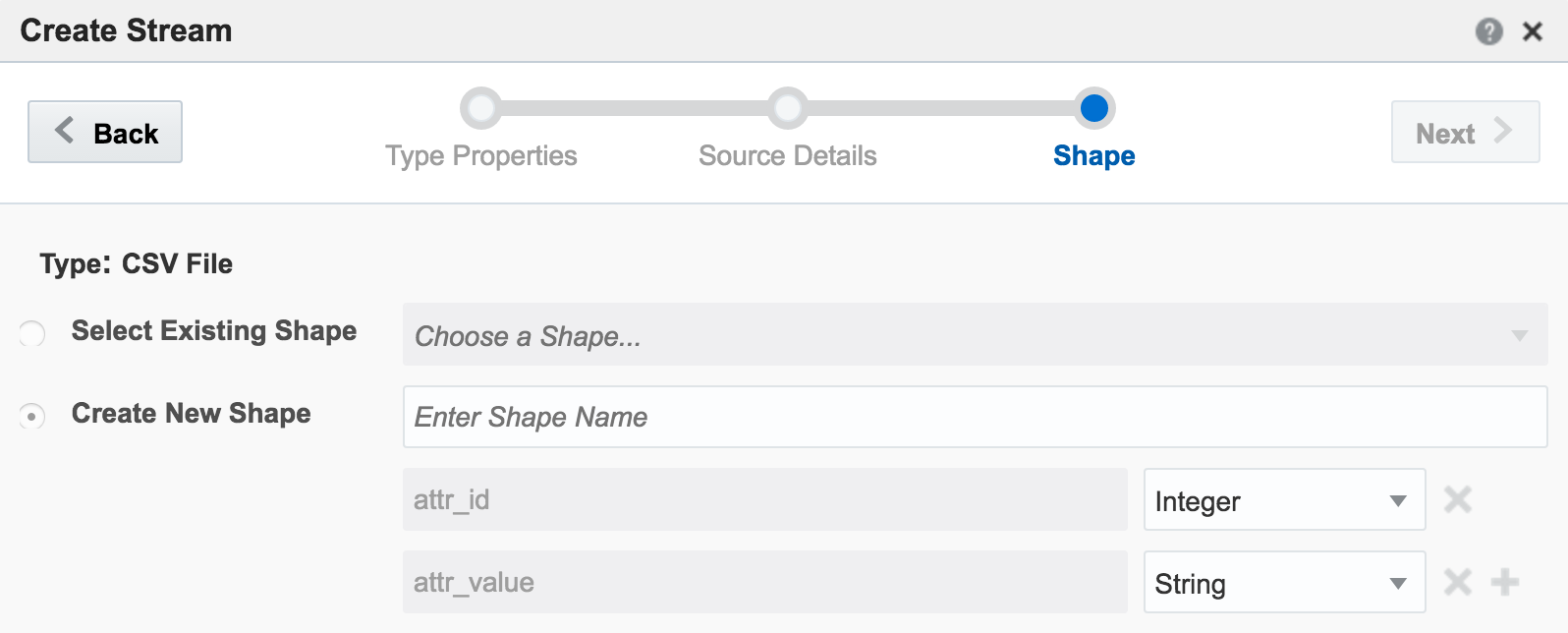
The stream type is CSV, and I can configure how often OSA reads from it, as well as telling OSA to loop back to the beginning when it’s read to the end, thus simulating a proper stream. The ‘shape’ is picked up automatically from the file, based on the first row (headers) and then inferred data types:
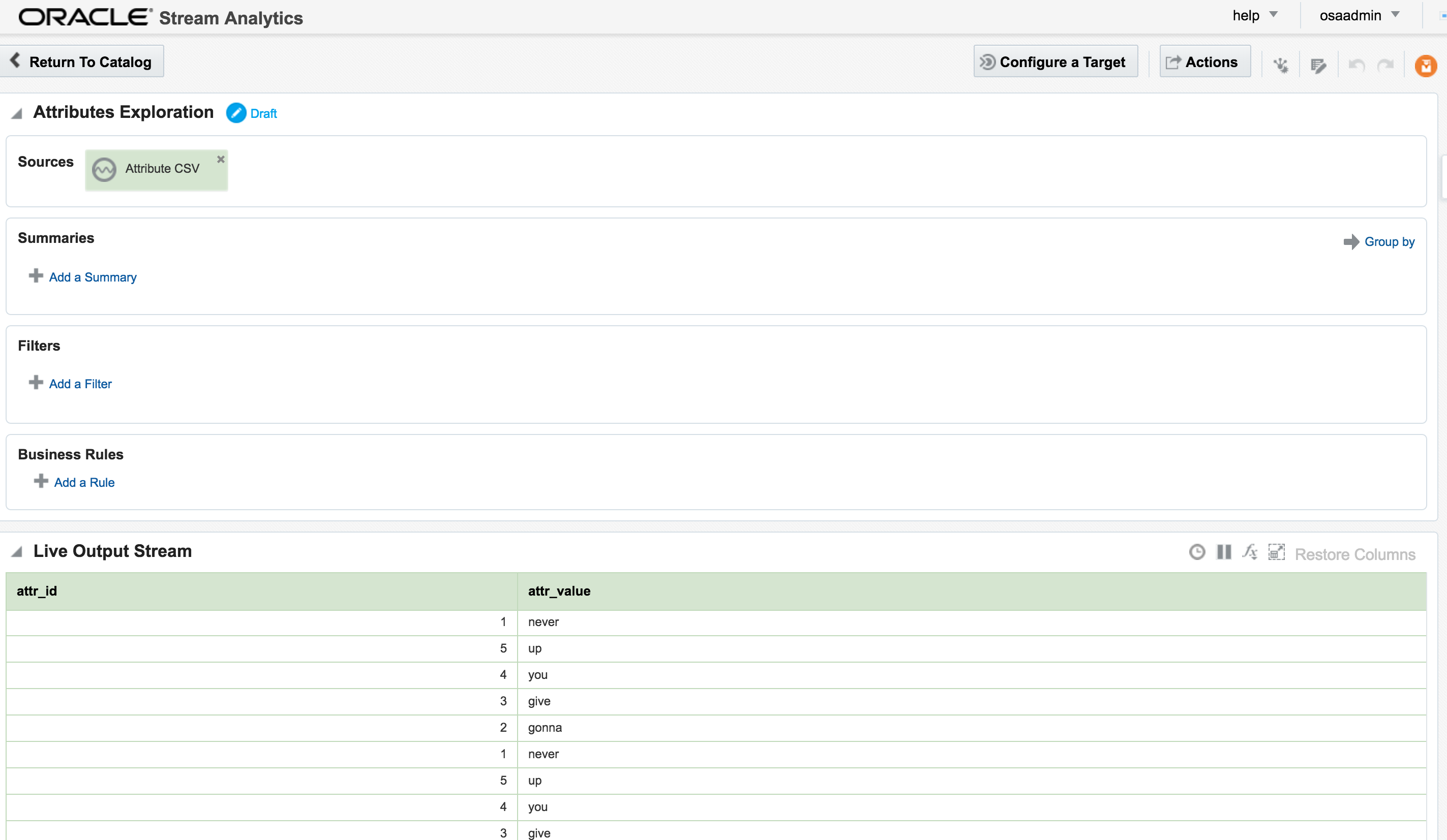
The Exploration for the stream shows the five values repeatedly streamed through (since I ticked the box to ‘loop’ the CSV file in the stream):
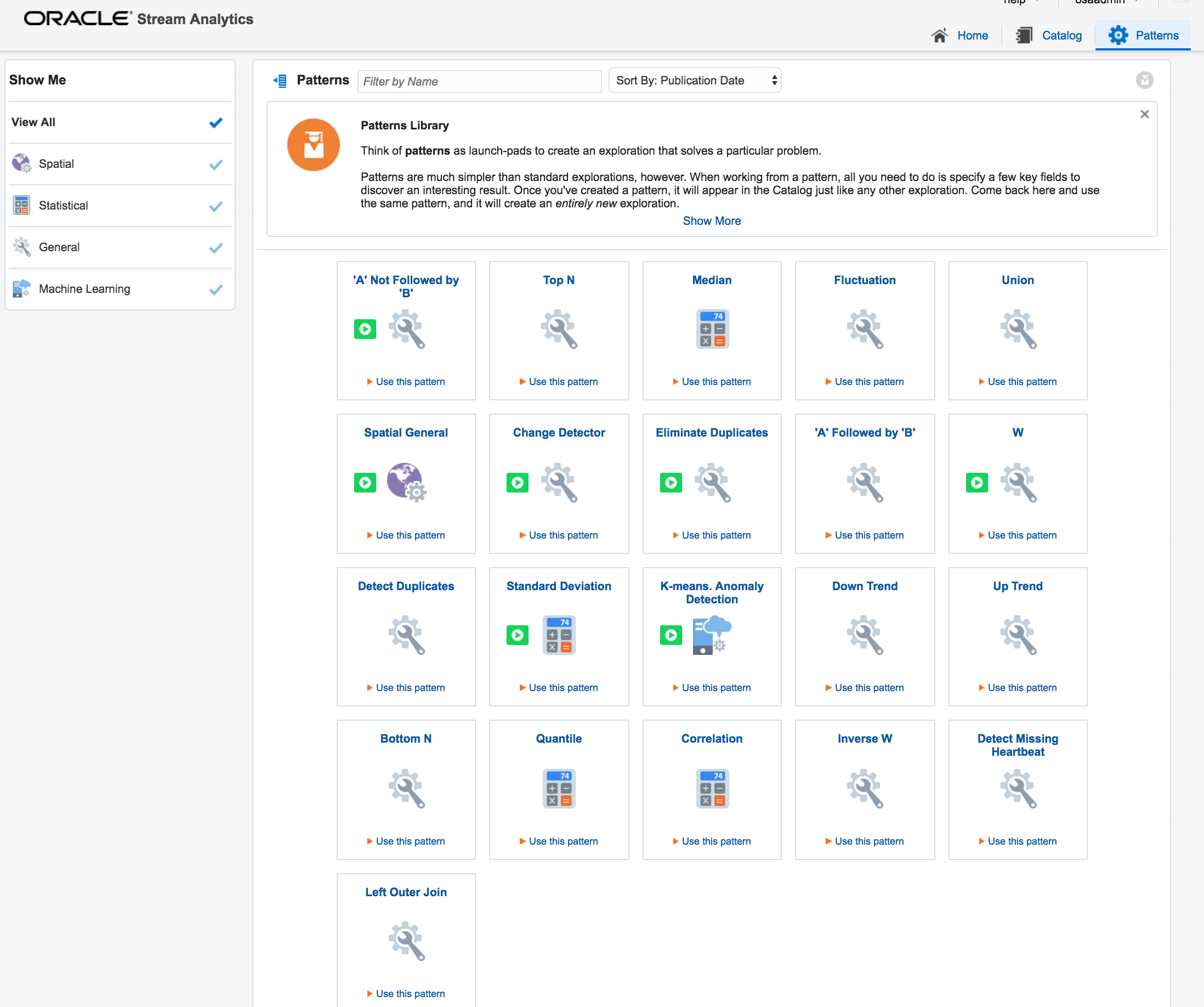
Back on the Catalog page I’m going to create a new Exploration, but this time based on a Pattern. Patterns are pre-built templates for stream manipulation and processing. Here we’ll use the pattern for a “left outer join” between streams.
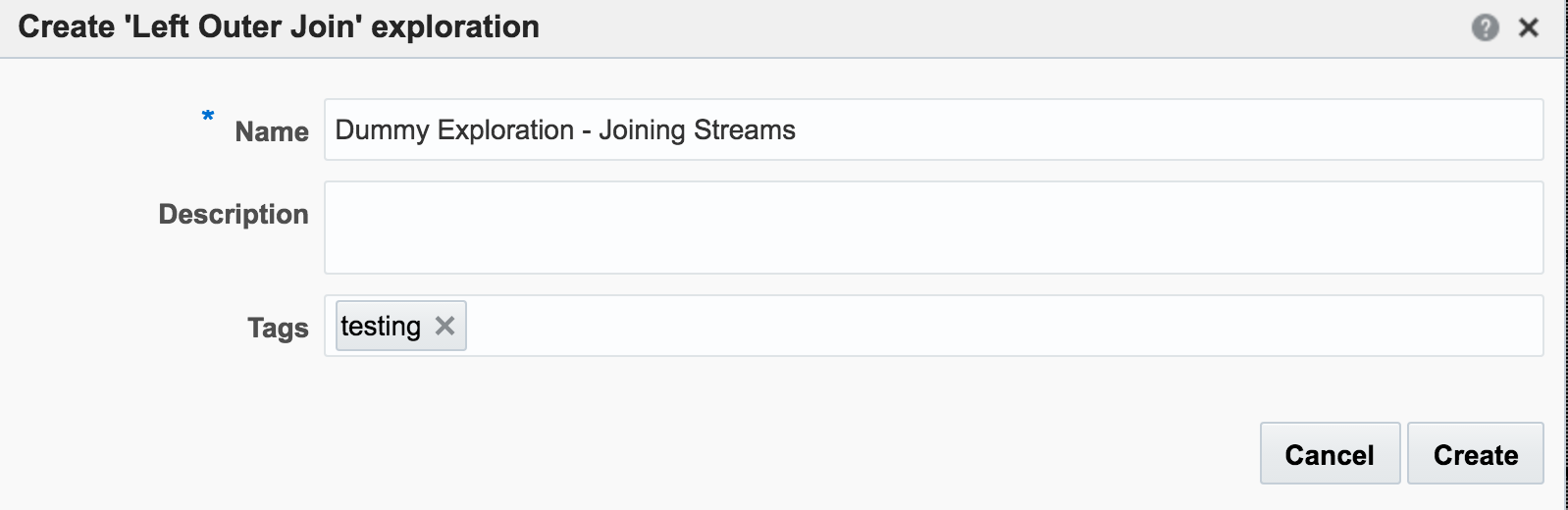
The Pattern has a set of pre-defined fields that need to be supplied, including the stream names and the common field with which to join them. Note also that I’ve increased the Window Range. This is necessary so that a greater range of CSV stream events are used for the lookup. If the Range is left at the default of 1 second then only events from both streams occurring in the same second that match on attr_id would be matched. Unless both streams happen to be in sync on the same attr_id from the outset then this isn’t going to happen that often, and certainly wouldn’t in a real-life data stream.
So now we have the two joined streams:
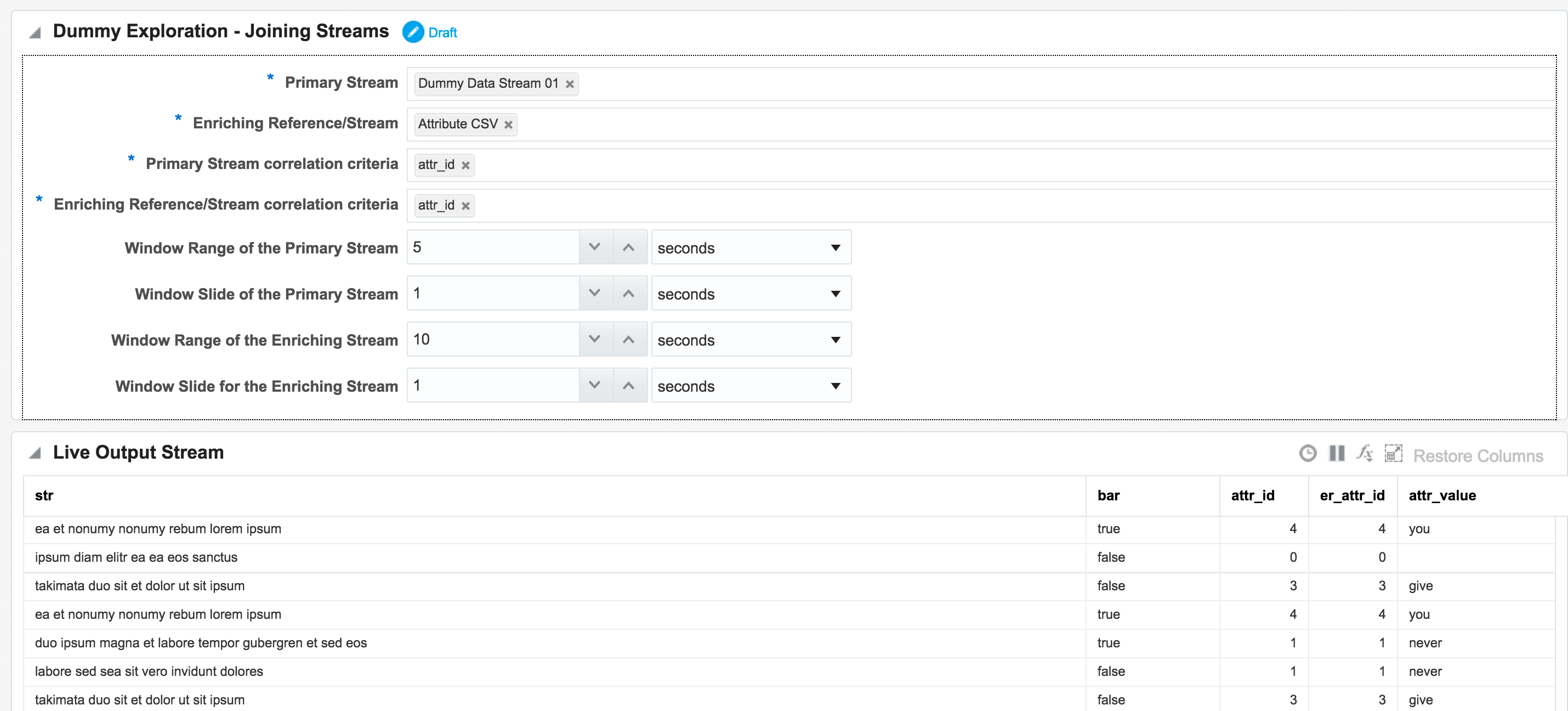
Within an Exploration it is possible to do light transformation work. By right-clicking on a column you can rename or remove it, which I’ve done here for the duplicated attr_id (duplicated since it appears in both streams), as well as renamed the attr_value:

Daisy-Chaining, Targets, and Topology 🔗
Once an Exploration is Published it can be used as the Source for subsequent Explorations, enabling you to map out a pipeline based on multiple source streams and transformations. Here we’re taking the exploration created just above that joined the two streams together, and using the output as the source for a new Exploration:
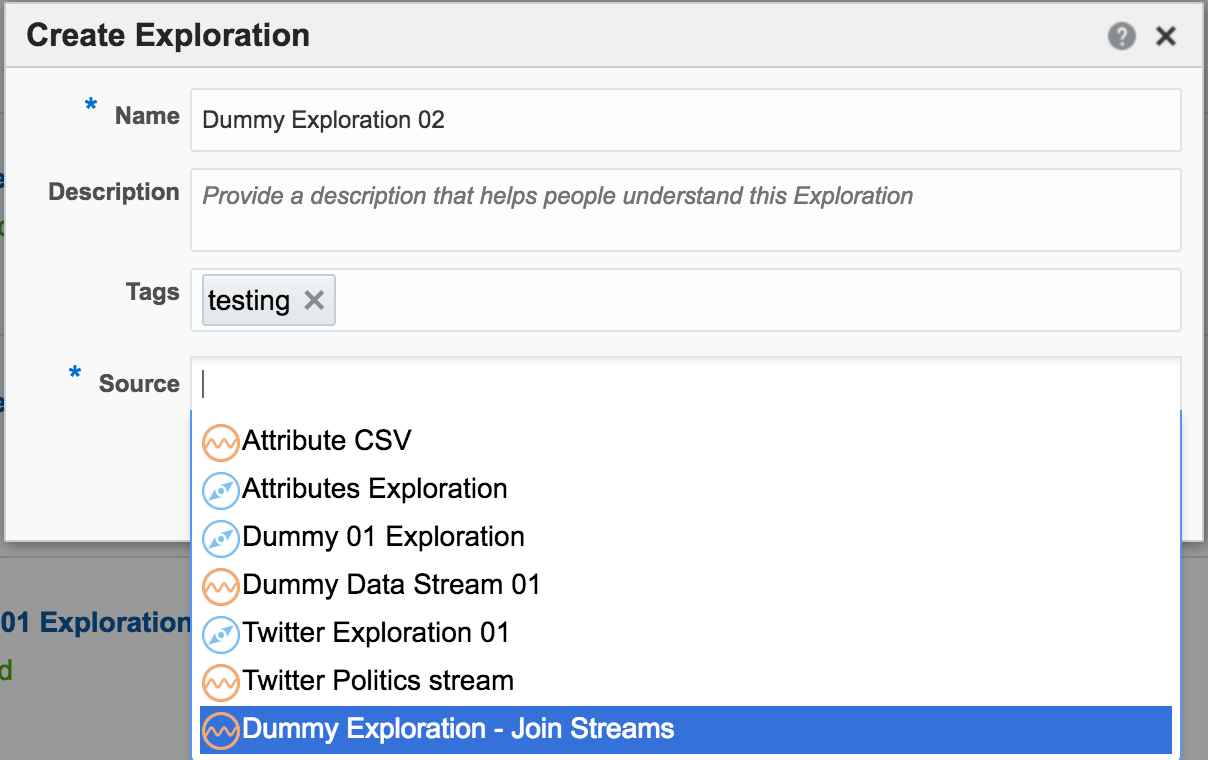
Since the Exploration is based on a previous one, the same stream data is available, but with the joins and transformations already applied
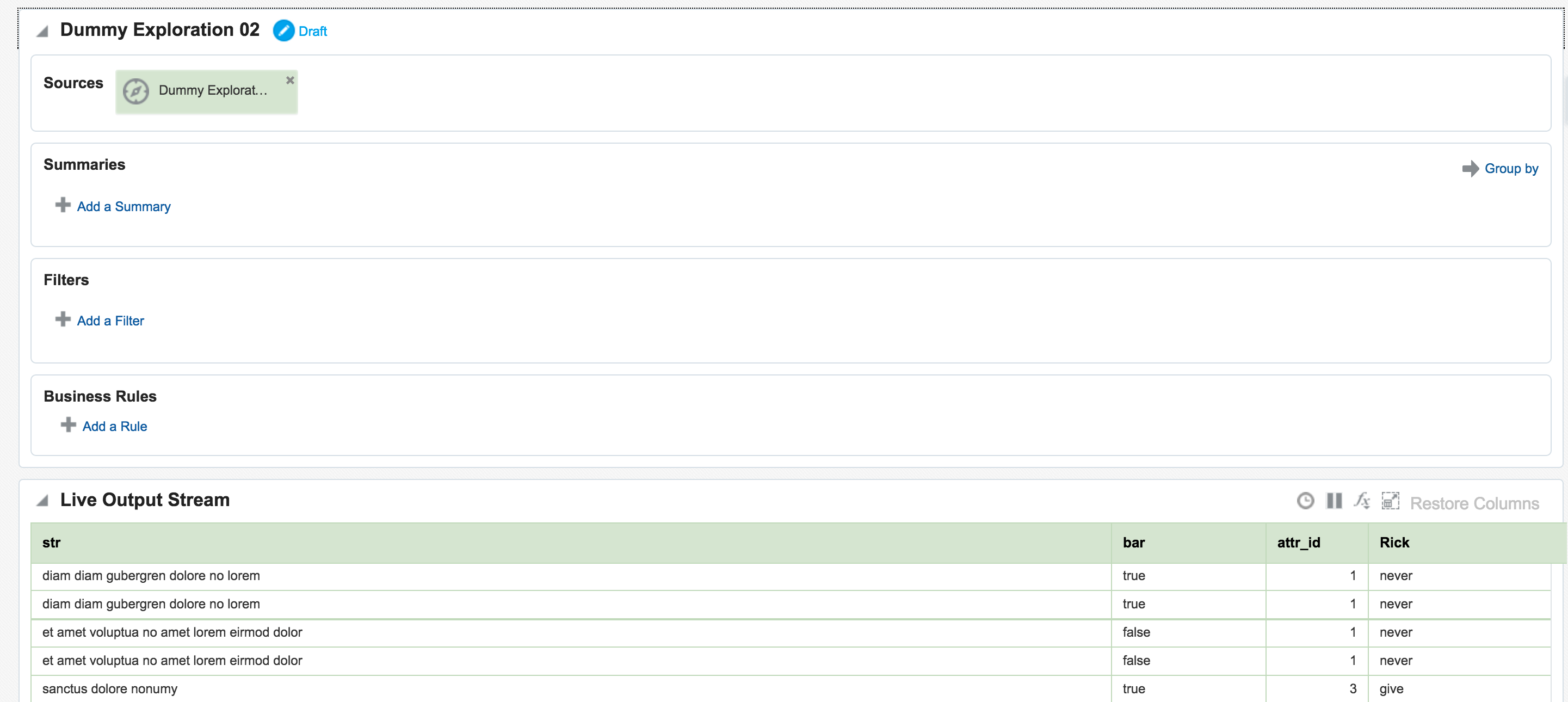
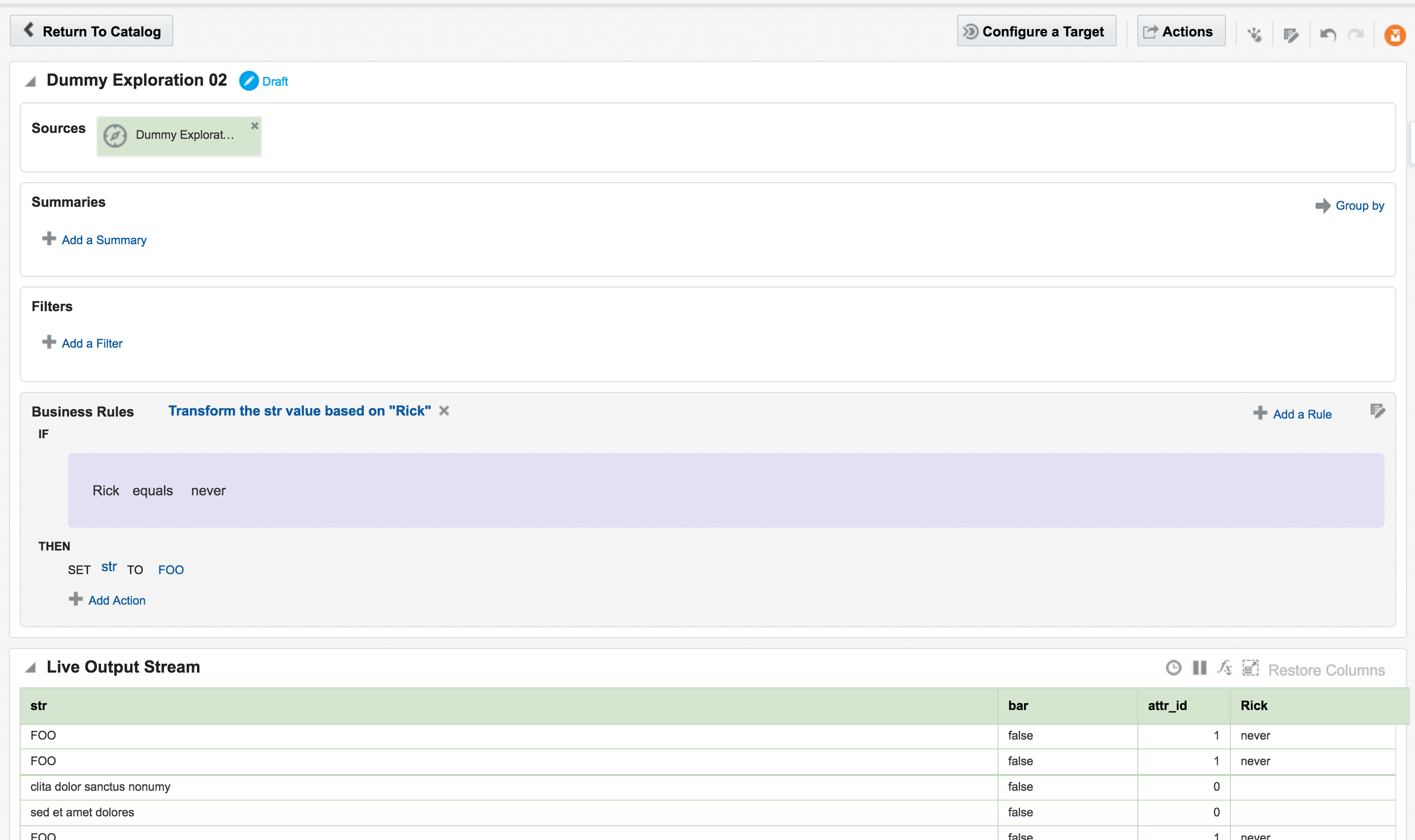
From here another transformation could be applied, such as replacing the value of one column conditionally based on that of another
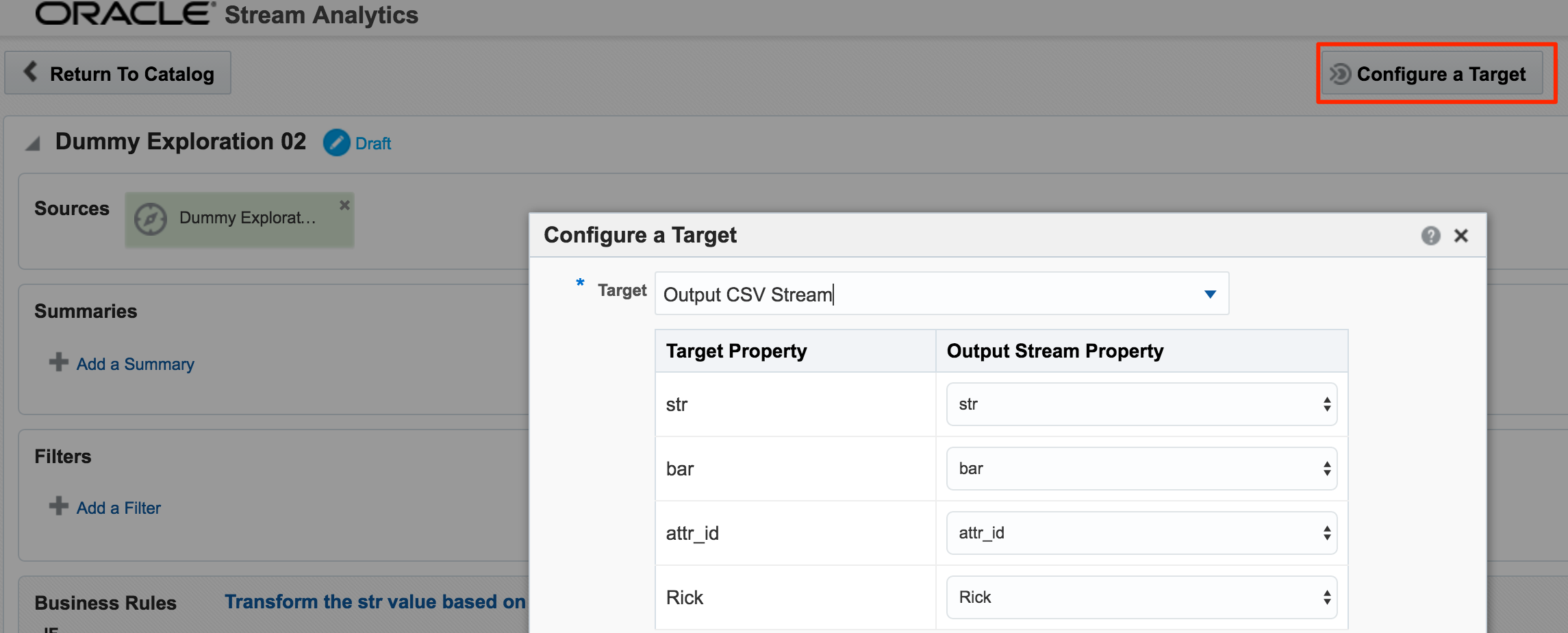
Whilst OSA enables rapid analysis and transformation of inbound streams, it also lets you stream the transformed results outside of OSA, to a *Target*as we saw in the Kafka example above. As well as Kafka other technologies are supported as targets, including a REST endpoint, or a simple CSV file.
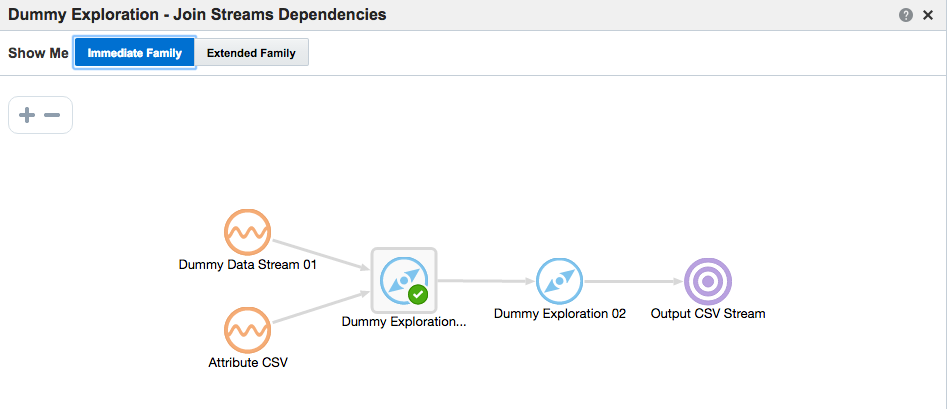
With a target configured, as well as an Exploration based on the output of another, the Topology comes in handy for visualising the flow of data. You can access this from the Topology icon in an Exploration page, or from the dropdown menu on the Catalog page against a given object
In the next post I will look at how Oracle Stream Analytics can be used to analyse, enrich, and publish data to and from Kafka. Stay tuned!
| This post originally appeared on the Rittman Mead blog. |